
Mac guide · November 2026
How to remove metadata from photos on a Mac
A Mac will take the location out of a photo for you. It stops there: the camera, its serial number, the date, the editing apps and any AI tags stay in the file you send. Here’s what Preview and Photos do, what they leave behind, and how to remove the rest from one photo or a whole shoot.
Free for 3 days · then $5 once · no subscription · Buy a licence
Short answer
On a Mac, the
- Location only: Preview › Tools › Show Inspector › GPS › Remove Location Info.
- Everything personal: drop the photo into MetaClean and choose Privacy clean. Location, camera, serial number, dates, software and AI tags go.
- A folder: drag it into Batch folder. Subfolders are included.
Get MetaClean freeFree for 3 days · then $5 once · no subscription
See what your photo carries
Before removing anything, look. macOS gives you two views:
- Preview. Open the photo and choose Tools › Show Inspector. The tabs list the EXIF data: camera, lens, exposure, date, and a GPS tab when there’s a location.
- Finder. Select the file, press
Command-I and open More Info for a shorter list.
Neither shows Content Credentials or the AI source tag that make platforms label a photo as AI. The free EXIF viewer shows those as well, and reads the photo in your browser.
What macOS removes by itself
One field group: where the photo was taken. There are three ways to it.
Preview
- Open the photo and choose Tools › Show Inspector.
- Open the GPS tab.
- Click Remove Location Info and save.
Photos
- For one photo: Image › Location › Hide Location.
- For everything you share or export: Photos › Settings › General, untick Include location information.
The Preview steps use Preview’s own menu names. For Photos: Apple, Manage location metadata in Photos and Photos settings.
What stays in the file
Apple documents how to view the rest of a photo’s metadata, and no way to remove it. So after Preview or Photos has done its part, the copy you send still says:
Which camera
Make, model, lens and, on many cameras, the body’s serial number.
When
The date and time it was taken, to the second.
How it was edited
The software that saved it, and sometimes a history of the edits.
AI tags
Content Credentials and the AI source type, if an editor added them.
A serial number links every photo from the same camera to each other. A date and an app name can say more about a job than the picture does.
Remove all of it
- 1
Drop the photo into MetaClean
JPG or PNG. For an iPhone photo in HEIC, export it from Photos as JPG first with File › Export.
- 2
Read what was found
Every field is listed in plain words and grouped: location, camera, dates, software, edit history, Content Credentials.
- 3
Pick how much goes
Privacy clean removes the personal and AI metadata. All removable removes everything it can. Custom lets you keep a field, such as your copyright line.
- 4
Send the
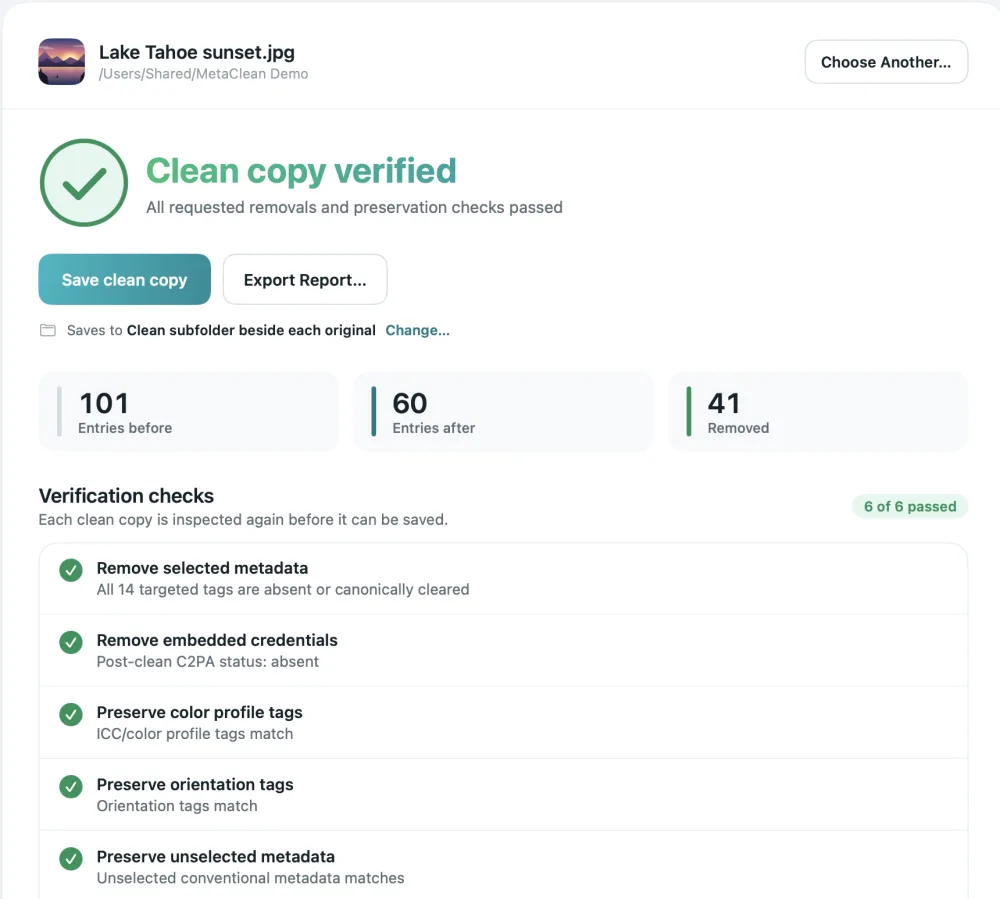
clean_copyIt is saved beside the original after being checked. The picture isn’t recompressed, and it keeps the colour profile and orientation it needs to look right.
A whole folder or shoot
Preview works on the photo that’s open. For a wedding gallery, a property listing or a year of product shots, drag the folder into Batch folder. MetaClean goes through every subfolder, cleans each photo and video, and saves the copies next to the originals so your structure stays as it is.
If the same folder keeps filling up, for example your editor’s export folder, add it to Watch Folders and new files are checked as they arrive. Videos from the same shoot are covered in the video metadata remover.
MetaClean needs macOS 14 or later on a Mac with Apple Silicon. On a PC, see removing photo metadata on Windows.
Your photos stay on your Mac
Online EXIF removers need the photo uploaded, location included. MetaClean works offline on your own Mac: no uploads, no account, no file size limits. More about privacy →
People are asking
What does my Mac leave in?
Photo metadata on a Mac: your questions
How do I remove metadata from a photo on a Mac?
macOS itself removes one thing, the location: in Preview choose Tools › Show Inspector, open the GPS tab and click Remove Location Info. For the camera, lens, serial number, dates, edit history and AI tags, drop the photo into MetaClean, choose Privacy clean and save the verified copy.
Can Preview remove EXIF data?
Preview shows EXIF data in its Inspector and can remove the location. Apple documents no option in Preview for removing the camera, date or software fields.
How do I see a photo’s metadata on a Mac?
Open it in Preview and choose Tools › Show Inspector, or select it in Finder and press
Does exporting from Photos remove metadata?
Photos can leave the location out: turn off “Include location information” in Photos › Settings › General, or hide the location on the photo first. Apple doesn’t document an export option that removes camera details.
How do I remove metadata from many photos at once on a Mac?
Drag the folder into MetaClean’s Batch folder. It cleans every JPG and PNG inside, subfolders included, saves the copies beside your originals and checks each one.
Does MetaClean work on my Mac?
It needs macOS 14 or later on a Mac with Apple Silicon (M1 or newer). It cleans JPG and PNG photos and MP4 and MOV videos. iPhone photos in HEIC format need exporting as JPG first, which Photos does with File › Export.
Is it safe to use an online EXIF remover on a Mac?
Most online tools upload your photo to their server to process it, location and all. MetaClean runs on your Mac and works with no internet connection, so the photo never leaves it.

Send the photo.
Keep the rest to yourself.
MetaClean removes location, camera details, dates and AI tags from your photos and videos, right on your Mac. Free for 3 days, then $5 once.
Download free trial