Lightroom guide · November 2026
How to turn off Content Credentials in Lightroom
Lightroom has a switch for the Content Credentials you add yourself, and none for the ones Adobe attaches after a generative AI edit. Here’s where the switch is in Lightroom and Lightroom Classic, what it doesn’t cover, and how to take Content Credentials out of the photos you’ve exported, without touching the image.
Free for 3 days · then $5 once · no subscription · Buy a licence

- Content CredentialsSigned manifest · issued by AdobeFoundRemoved
- AI source typeComposite with trained algorithmic mediaFoundRemoved
- Copyright and captionKept as you wrote themFoundKept
- Image and colour profileKept · not recompressedFoundKept
Short answer
There are two kinds of Content Credentials in a Lightroom export, and only one has a switch:
- Lightroom: in the export Custom Settings, untick Apply Content Credentials. Default: Preferences › Export › Don’t include.
- Lightroom Classic: File › Export › leave the Content Credentials section off.
- After a generative AI edit: Adobe attaches them automatically and says this can’t be disabled.
- For those, and for files you already exported: remove them from the JPG with MetaClean, on your Mac or PC.
Get MetaClean freeFree for 3 days · then $5 once · no subscription
Where the Content Credentials switch is
Adobe describes the optional kind as something creators choose to attach: your name, your linked social accounts and an overview of your edits. It is set per export.
Lightroom (desktop)
- Select the photo and open the export Custom Settings.
- Untick Apply Content Credentials.
- For export shortcuts and shared albums, open Preferences › Export and set the storage method to Don’t include.
Lightroom Classic
- Choose File › Export.
- Scroll to the Content Credentials section and expand it.
- Leave it off. When it’s on, it offers Publish to Content Credentials cloud, Attach to files or both.
Sources: Adobe, Content Credentials in Lightroom and in Lightroom Classic, both updated 25 August 2026.
One thing to know about the cloud option: credentials published to Adobe’s Content Credentials cloud can be matched back to a photo that looks like yours, even after the file’s own copy is gone. If you don’t want them, choose Don’t include before you export.
The kind you can’t turn off
The switch above doesn’t cover generative AI. Adobe’s AI content labeling FAQ says C2PA metadata is attached automatically when its qualifying generative AI tools create or change content in Adobe apps, and answers the obvious question plainly: “this metadata cannot be disabled for qualifying content”. The reason it gives is new AI transparency law.
Adobe’s FAQ doesn’t list the tools by name. What it means in practice: a single edit with one of them, for example Generative Fill in Photoshop before the photo came back to your catalogue, can leave Content Credentials in the export with every Lightroom setting off. Adobe itself adds no visible label. Instagram, Facebook, Threads and LinkedIn read the metadata when you upload and decide what to show.
One distraction removed.One line of metadata added.A whole shoot marked.
The photo is still yours. The file just says more than you meant it to.Not sure which of your exports carry them? Drop one into the free EXIF and C2PA viewer. It reads the file in your browser.
Remove Content Credentials from photos you already exported
Changing the setting only affects the next export. For a delivered gallery or a folder of finished JPGs, clean the files:
- 1
Drop in the export folder
Open MetaClean and drag the folder into Batch folder. Subfolders are included, so a shoot sorted by day or client stays as it is.
- 2
See which files carry them
Each photo is listed with what was found: Content Credentials, the AI source type, and the usual camera and location details.
- 3
Choose Credentials only
It removes the Content Credentials and AI tags and nothing else. Your copyright notice, creator name, captions and keywords are kept.
- 4
Deliver the
clean_copiesThey are saved beside your exports after being checked. The exports themselves are never changed.
Clean every Lightroom export automatically
If you export every week, add your export folder to MetaClean’s Watch Folders once. From then on it checks each new JPG or PNG that Lightroom saves there. When a file carries Content Credentials or
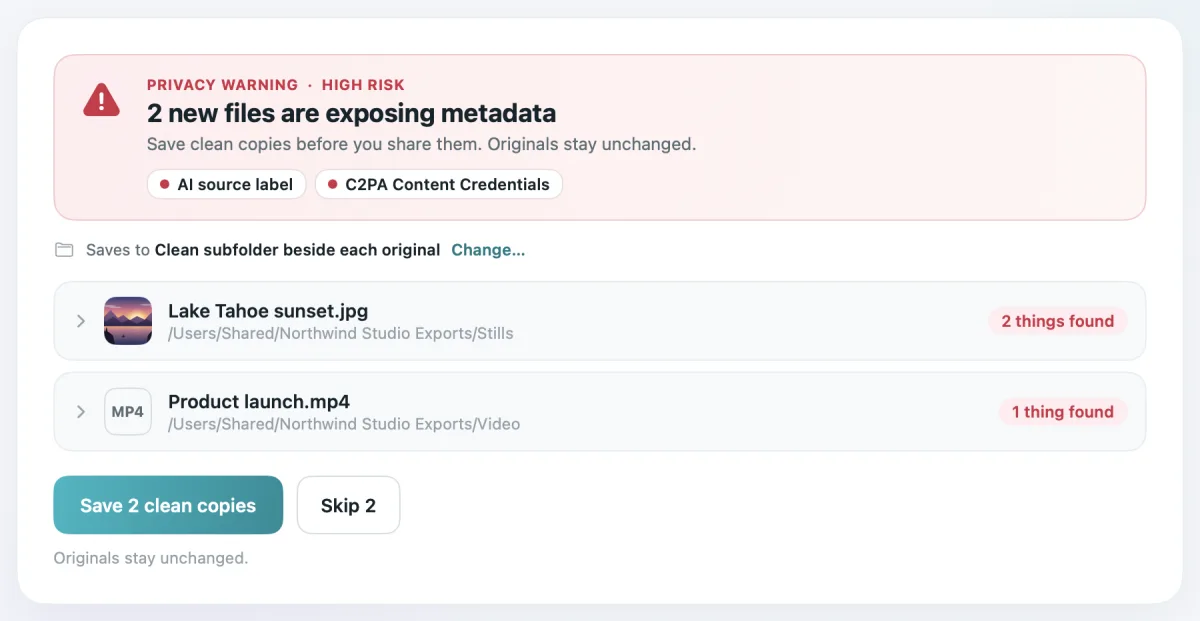
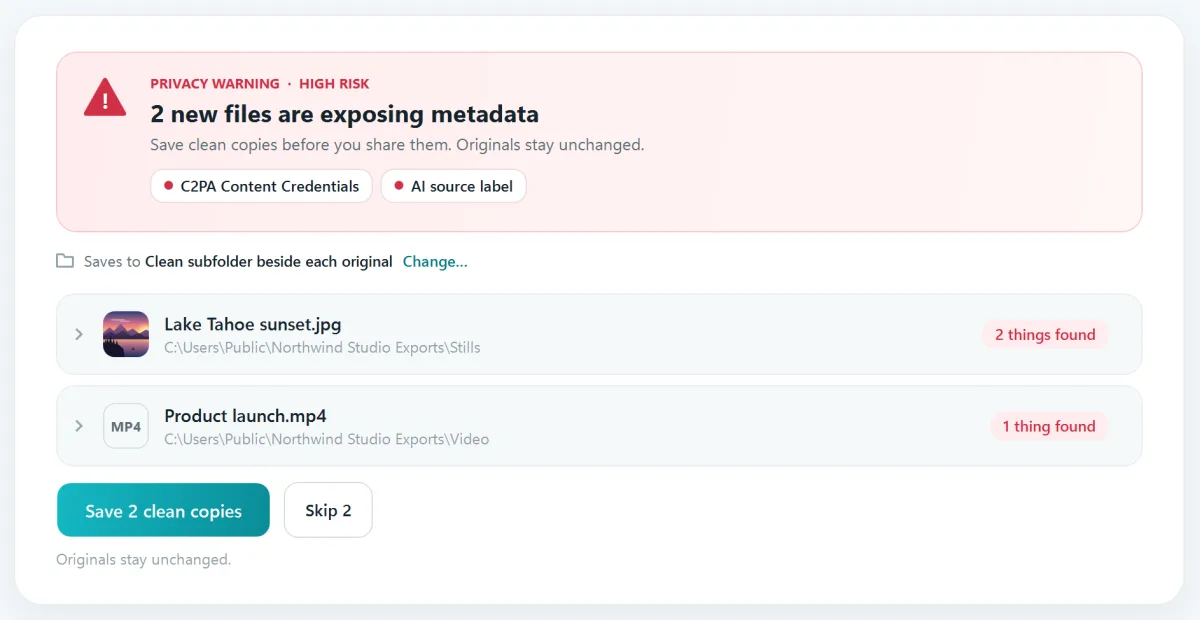
The same folder can take renders from Premiere Pro too, if you deliver video with your stills.
What stays in your file
| In your Lightroom export | Credentials only | Privacy clean |
|---|---|---|
| Content Credentials (C2PA) | Removed | Removed |
| AI source type | Removed | Removed |
| Copyright, creator, captions, keywords | Kept | Use Custom to keep them |
| GPS location, camera, lens, serial number | Kept | Removed |
| Pixels, colour profile, orientation | Unchanged | Unchanged |
Custom lets you pick field by field, for example to drop the location and keep your copyright line.
Client work stays on your computer
Online removers want the photo uploaded first. MetaClean runs on your own Mac or Windows PC: no uploads, no account, no file size limits, so unreleased work never leaves your drive. More about privacy →
People are asking
Exported from Lightroom, labelled AI
Lightroom and Content Credentials: your questions
How do I turn off Content Credentials in Lightroom?
In Lightroom on desktop, open the export Custom Settings and untick Apply Content Credentials. To change the default, go to Preferences › Export and set the storage method to Don’t include. In Lightroom Classic, open File › Export, find the Content Credentials section and leave it off. This switch covers the credentials you choose to add. The ones Adobe attaches after a generative AI edit have no switch.
Why does my Lightroom photo say “AI info” on Instagram?
Because the exported JPG carries Content Credentials or an AI source tag that Instagram reads on upload. That happens when Content Credentials were applied at export, or when one of Adobe’s generative AI tools changed the photo, for example in Photoshop before it came back to your catalogue. Removing that metadata from the exported file removes what Instagram reads.
Can I turn off the Content Credentials that Adobe adds for generative AI?
No. Adobe’s FAQ says C2PA metadata is attached automatically when its qualifying generative AI tools create or change content, and that it can’t be disabled. You can remove it from the exported file afterwards, which is what MetaClean does on your own computer.
How do I remove Content Credentials from photos I already exported?
Drop the JPGs or the whole export folder into MetaClean on your Mac or Windows PC and choose Credentials only. It removes the Content Credentials and AI tags from a copy of each file, keeps your copyright, captions and keywords, and leaves the image data untouched.
Will removing Content Credentials change my photo?
No. MetaClean doesn’t
Does Lightroom’s “Copyright only” metadata option remove Content Credentials?
Adobe doesn’t document that it does. That menu chooses which catalogue metadata is written into the export, and Content Credentials are a separate section of the export settings. The reliable check is to look at the exported file: our free EXIF and C2PA viewer shows whether it carries them.
Does this work for Lightroom Classic and Lightroom on desktop?
Yes. MetaClean works on the files they export, so it doesn’t matter which one you use, or whether the photo also went through Photoshop. It runs on macOS 14 or later on Apple Silicon and on Windows 10 and 11.

Export from Lightroom.
Deliver without the label.
MetaClean removes Content Credentials from your exports on your own Mac or PC and keeps your copyright in. Free for 3 days, then $5 once.
Download free trial