Photoshop guide · updated October 2026
Remove metadata from Photoshop exports, including “AI info”
One pass of Generative Fill and Photoshop writes Content Credentials into the file you export. Instagram reads them and labels your real photo AI info. Here’s why it happens, which tools trigger it, and how to clean every export automatically, before it ever reaches a platform.
Free for 3 days · then $5 once · no subscription · Buy a licence
Short answer
Photoshop attaches Content Credentials to your exports after Generative Fill and other Firefly tools, and Instagram turns them into AI info. Remove them from the exported file before you post, automatically for every export:
- Add your Photoshop export folder to MetaClean’s Watch Folders (subfolders included).
- Export as usual: Export As, Quick Export, Save a Copy or a batch action.
- When a file carries Content Credentials, MetaClean alerts you. Click Clean.
- Post the
clean_copy. No AI note in the file, no “AI info” label.
Get MetaClean freeFree for 3 days · then $5 once · no subscription
People are asking
Edited in Photoshop, labelled “AI info”
Why Photoshop exports get “AI info”
Instagram doesn’t look at your photo and guess. It reads the file’s metadata, and Photoshop now writes a very specific note into it. Adobe’s own FAQ says that when its generative AI tools are used to create or modify content, C2PA metadata is attached to the file automatically, and that it can’t be switched off for that content, because new AI transparency laws in California and the EU require it.
That C2PA record is Content Credentials. Instagram, Facebook and Threads read it and show AI info. TikTok reads the same standard and shows AI-generated, LinkedIn shows its CR badge, and YouTube adds its own label. One generative touch-up, a cable removed, a sky extended, and the whole photo is labelled.
Some Photoshop users also report Content Credentials appearing on exports where they used no generative tool at all (Adobe community thread). Either way, the fix is the same: check the file you export, and clean it before it’s posted.
Shot on a camera.One Generative Fill.Labelled AI.
The label follows the file, not the edit. Clean the file and it’s gone.Which Photoshop tools add Content Credentials
Adobe attaches C2PA when a generative AI tool touches the image. Classic retouching tools are a different kind of feature:
| Photoshop feature | Typical use | Adds AI Content Credentials |
|---|---|---|
| Generative Fill | Remove a cable, replace a sign | Yes, automatically |
| Generative Expand | Extend the canvas, widen the sky | Yes, automatically |
| Generate Image, Generate Background | New elements, product backdrops | Yes, automatically |
| Content-Aware Fill, Spot Healing Brush | Classic retouching | Not generative AI |
| Export As › Content Credentials | Signing your own work | Yes, when you turn it on |
Not sure what your file carries? Check a photo for AI metadata or open it in the free EXIF viewer, both right in your browser. For camera, GPS and other everyday metadata, see the photo metadata remover.
What Photoshop’s own export settings do
Export As and Save for Web (Legacy) have a Metadata option: None, Copyright, Copyright and Contact Info or All. It controls the camera, copyright and contact details Photoshop copies into the export. The C2PA record for generative edits is a separate layer that Adobe applies automatically, as its FAQ describes.
So the dependable place to clean is the exported file itself. That’s where MetaClean works: it reads the JPG or PNG that Photoshop wrote, removes the Content Credentials and the IPTC AI source tag (the DigitalSourceType field, set to values like compositeWithTrainedAlgorithmicMedia after a generative edit), and saves a verified clean copy. If you also want camera, lens and GPS details gone, the Privacy clean preset takes care of those in the same pass.
Remove Content Credentials from every Photoshop export automatically
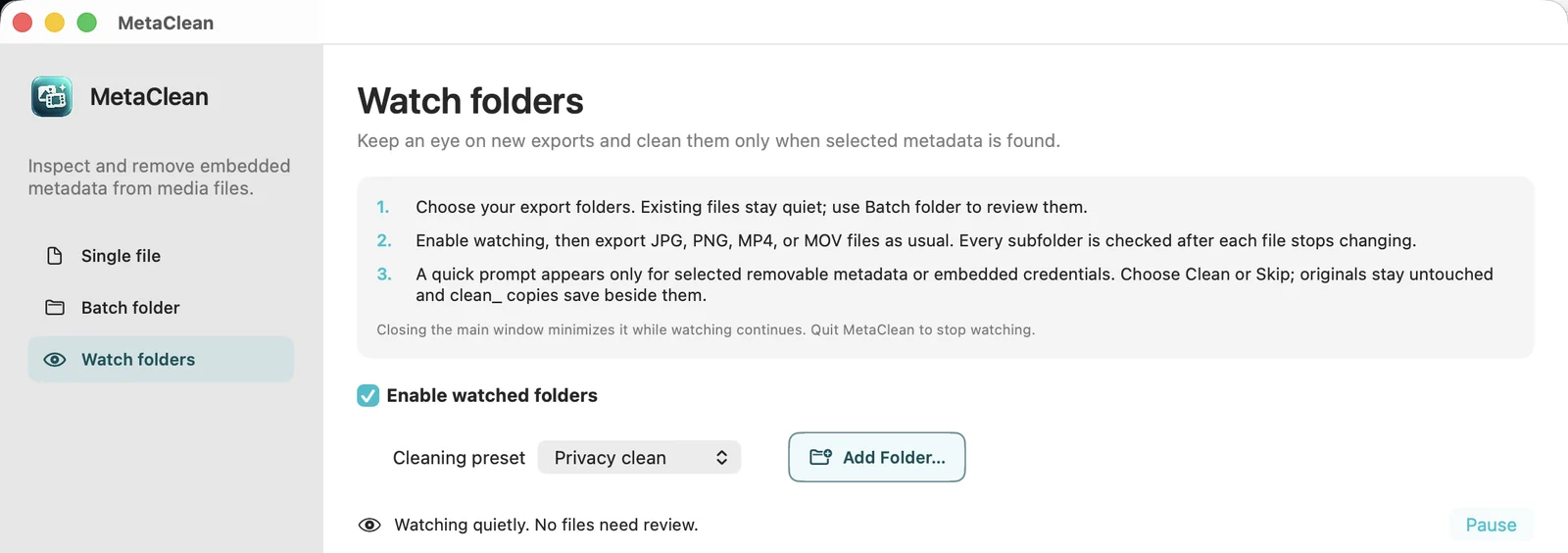
MetaClean’s Watch Folders keeps running in the background and watches your export folders, including every subfolder. Each time a JPG or PNG lands there, exported from Photoshop or copied in, it checks the file. If the file carries the metadata platforms read as AI, MetaClean alerts you and offers to clean it. If not, you never hear a thing.
- 1
Add your export folder
Open MetaClean › Watch folders and choose Add Folder. Pick the folder Photoshop exports into, for example
Exports/Clients. Subfolders are included, so your project structure stays as it is. - 2
It removes just the AI metadata
Watch Folders alerts you when a file carries Content Credentials or AI-origin metadata, and Clean removes exactly that. GPS, camera details and the rest of your file’s metadata stay as they are. Want those gone too? Use Privacy clean on a single file or a batch folder.
- 3
Export like you always do
Export As, Quick Export as PNG, Save a Copy, an action batch, a script: anything that saves a JPG or PNG into the folder. MetaClean checks each file once it has finished saving.
- 4
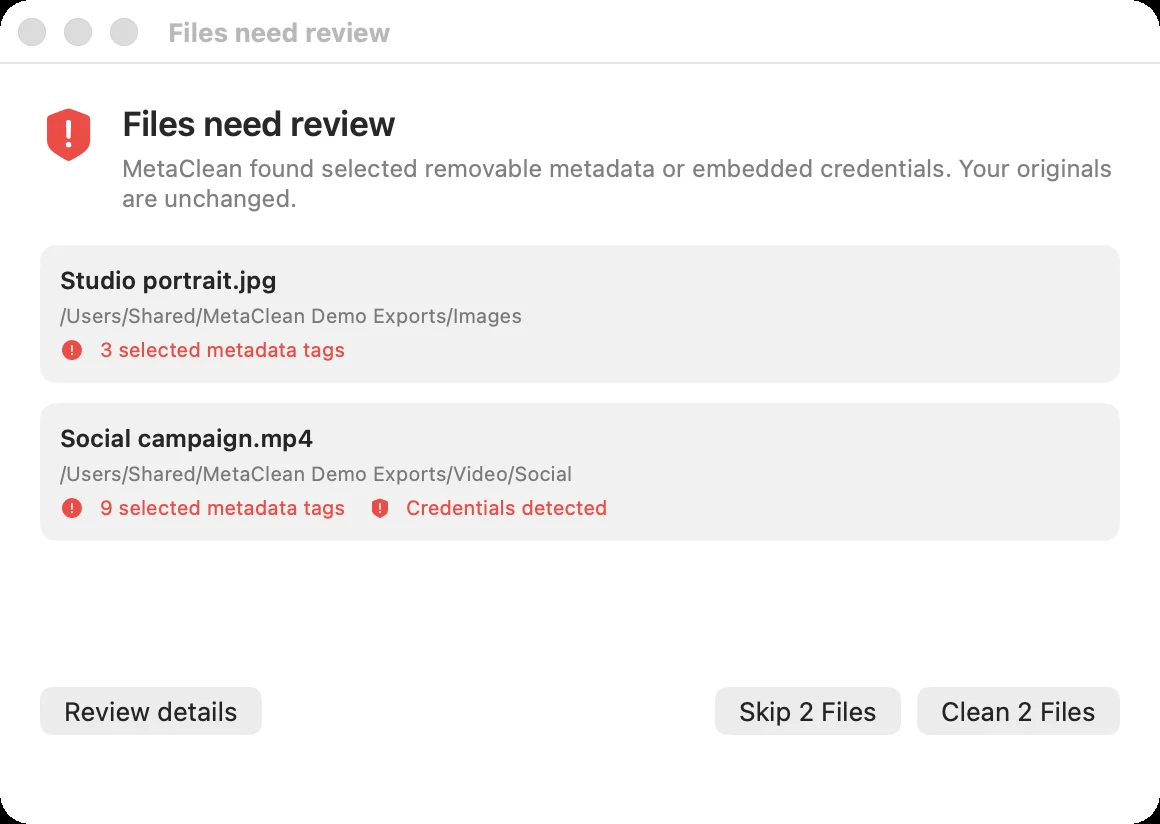
Clean or Skip
A compact prompt lists the files that need attention and what was found. Choose Clean, Skip or Review details, without opening the main window.
- 5
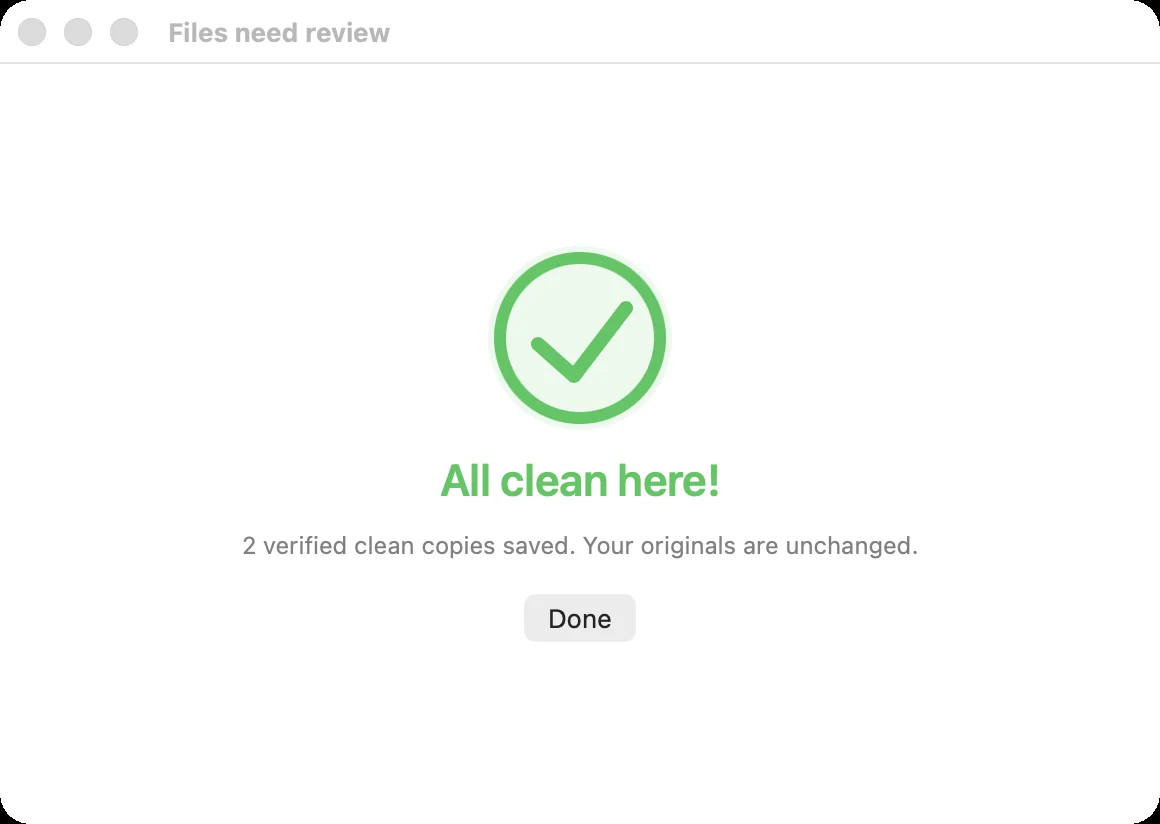
Post the clean copy
A soft chime and a green check: “All clean here!” The verified
clean_copy sits beside your original, which stays exactly as it was.
The same folder works for every app
- Photoshop
- Premiere Pro
- CapCut
- Any other editor

Photoshop and Premiere Pro are trademarks of Adobe. CapCut is a trademark of Bytedance. MetaClean works with the files they export and is not affiliated with Adobe or Bytedance.
Already exported? Clean a whole folder
Watch Folders checks what you export from now on. For photos you exported last month, drop the folder into MetaClean’s Batch folder: it scans every JPG and PNG inside, including subfolders, and cleans them in one go. Then post the clean_ copies, or replace a post that already shows AI info.
What gets removed, and what stays
 Lake-sunset.jpg8 findings
- Content CredentialsAdobe Photoshop · Generative FillFoundRemoved
- AI source typeComposite with trained algorithmic mediaFoundRemoved
- GPS and location40.7128° N, 74.0060° WFoundRemoved
- Camera and deviceSony α7 IV · 35 mmFoundRemoved
- Editing history9 steps in PhotoshopFoundRemoved
- SoftwareAdobe Photoshop 27.1FoundRemoved
- Colour profileAdobe RGB (1998)FoundKept
- OrientationHorizontalFoundKept
Exporting video too? The same folder catches MP4 and MOV files. Here’s how Premiere Pro exports get the AI label.
Your photos stay on your computer
Online “remove AI label” sites want your file first. MetaClean watches, inspects and cleans on your own Mac or Windows PC: no uploads, no account, no file size limits. More about privacy →
Photoshop metadata: questions and answers
How do I remove metadata from a Photoshop export?
Add your Photoshop export folder to MetaClean’s Watch Folders. Every JPG or PNG you export is checked in the background, and when it carries Content Credentials or AI-origin metadata, a quick prompt lets you clean it in one click. MetaClean saves a verified clean_ copy beside the original.
Why does Instagram say “AI info” on my Photoshop edit?
Because Photoshop writes Content Credentials (C2PA) into the exported file after you use a generative tool like Generative Fill or Generative Expand. Instagram, Facebook and Threads read that metadata on upload and add the “AI info” label. Remove it from the file before you post and there’s no AI metadata left for Instagram to read.
Can I turn off Content Credentials in Photoshop?
Not for generative edits. Adobe says C2PA metadata is attached automatically when its generative AI tools are used, and that it can’t be disabled for that content under new AI transparency laws. The way to post without it is to clean the exported file, which is exactly what MetaClean does.
Does “Export As › Metadata: None” remove the AI label?
It drops camera and copyright details, but Adobe attaches the C2PA record for generative edits automatically. MetaClean removes the Content Credentials and the AI source tags from the exported file, along with any camera or GPS details you choose.
Does cleaning reduce image quality?
No. MetaClean removes metadata, not pixels. It does not re-encode the JPG or PNG, keeps the colour profile and orientation, and checks the clean copy pixel for pixel before saving it.
Do I need a Photoshop plugin?
No plugin needed. MetaClean watches the folder Photoshop exports into, so it works with Export As, Quick Export, Save a Copy and any batch action or script that saves JPG or PNG files there.
Does it work with Lightroom too?
Yes. Point Lightroom’s export at a watched folder, or add the folder it already uses. Generative Remove in Lightroom writes Content Credentials the same way, and MetaClean catches them the same way.
Are my photos uploaded anywhere?
Never. MetaClean runs on your Mac or Windows PC. Watching, inspecting and cleaning all happen on your computer; the only thing it sends is a licence check.

Export from Photoshop.
Post without “AI info”.
MetaClean watches your export folders and cleans the AI metadata on your Mac or PC. Try it free for 3 days, then $5 once.
Download free trial