
Photo guide · updated 2026
Remove AI metadata from any photo
One AI touch-up leaves a trail of tags inside your photo, and every platform reads them. Here’s how to check a photo for AI metadata, what each tag means, and how to remove the AI tag from a photo without changing a single pixel.
The checker runs in your browser · MetaClean: free for 3 days, then $5 once
In short
- Check the photo: MetaClean lists every AI marker it carries.
- Remove them with Credentials only: C2PA, the IPTC AI tag and AI edit history go; the picture stays.
- Share the clean copy. Your original is kept exactly as it was.
For real photos with a small AI touch-up: a removed stranger, a patched sky. If a picture was generated by AI, keep its label.
AI metadata checker: does your photo have AI tags?
AI metadata is the information an AI editing tool writes into a photo file: a C2PA Content Credentials manifest, the IPTC digital source type field, and AI steps in the XMP edit history. Check any photo or video right here. The file is read by your browser and never leaves your device:
Want to see the signing app, the recorded edits and every other field? Open the file in our free EXIF viewer.
What each app typically leaves behind
Pick the last app that touched the photo to see what an AI metadata viewer usually finds inside:
Photoshop or LightroomGenerative Fill, Expand or Remove
A phone AI editorMagic Editor, Galaxy AI, object erasers
Canva or an AI appMagic Edit, AI upscalers, background tools
Straight from the cameraNo edits
IMG_2041.jpg · Photoshop or Lightroom
AI metadata found: platforms will label it
IMG_2041.jpg · A phone AI editor
AI metadata found: platforms will label it
IMG_2041.jpg · Canva or an AI app
AI metadata found: platforms will label it
IMG_2041.jpg · Straight from the camera
No AI metadata: nothing to label
Three ways to check AI metadata
MetaClean
It doubles as an AI image metadata viewer: drop the photo in and it lists every AI marker, plus GPS and camera details, in plain words before you change anything.
Content Credentials Verify
The official website for C2PA. Great for credentials, but it won’t show the IPTC AI tag.
exiftool
The command-line classic: exiftool -a -G1 photo.jpg prints every field, including IPTC and XMP.
The three AI markers inside a photo
An AI metadata checker is really looking for three things. Instagram and Facebook read C2PA and the IPTC tag to add their AI label, YouTube reads Content Credentials, and the XMP history can name the AI step. MetaClean removes all three together, so nothing is left for a platform to find.
Content Credentials
A signed manifest naming the app and the AI action. More in our C2PA remover guide.
Digital source type
A single field that records how an image was made. Values like compositeWithTrainedAlgorithmicMedia mean an AI tool changed part of a real photo.
Edit history
The app’s log of what you did, which can name the generative feature step by step.
Remove one, keep two,still flagged.
That’s why tools that only strip C2PA often leave the IPTC tag behind.Sources: the C2PA standard, the IPTC digital source type vocabulary and Meta’s approach to labelling AI content.
How to remove AI metadata from photos, step by step
Instagram and Facebook call it “AI info”, YouTube “altered or synthetic content”. Underneath it’s the same metadata, so one clean-up covers every platform. If you came here to remove AI info from photo uploads or remove an AI label from image posts, these are the steps:
- 1
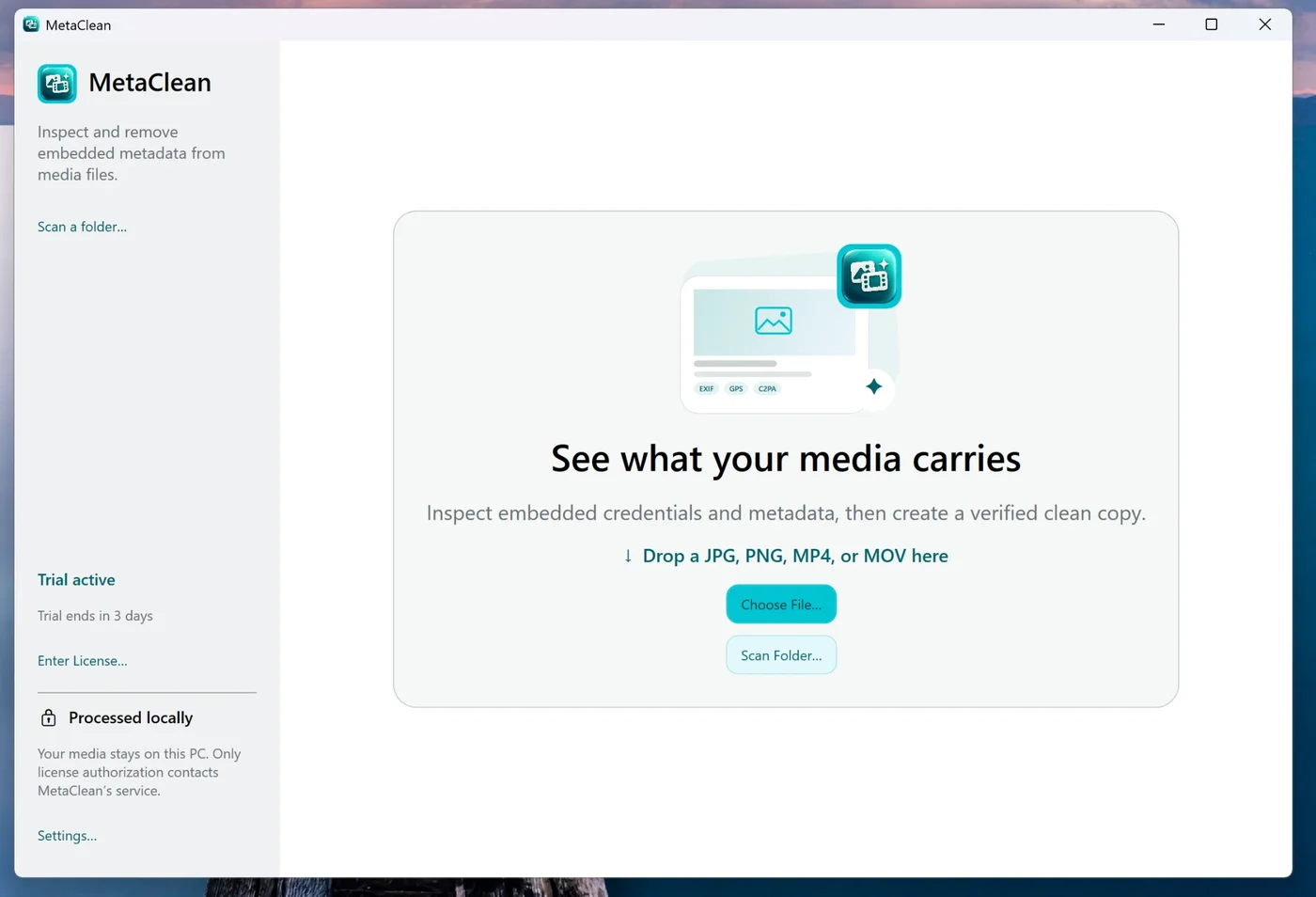
Open the photo in MetaClean
On your Mac or Windows PC. Got a whole shoot? To remove AI metadata from image files in bulk, drop in the export folder and MetaClean checks every file.
- 2
Read the findings
Each AI marker is listed with the tool it names, next to GPS, camera and software details.
- 3
Choose Credentials only
It removes the AI markers and keeps everything else. Privacy clean also removes GPS location, camera serial and timestamps.
- 4
Save the checked copy
MetaClean saves a
clean_copy only after reading it back and confirming the AI markers are gone and the pixels match.
Remove AI metadata from a Photoshop Generative Fill photo
Generative Fill, Generative Expand and Lightroom’s Generative Remove attach Content Credentials to the image, with the AI digital source type inside. That’s why one small fix can get a whole photo labelled.
- 1
Export as usual
Save your JPG or PNG from Photoshop or Lightroom with the settings you always use.
- 2
Clean the export with MetaClean
Choose Credentials only: the Content Credentials and every AI marker go, and the pixels are copied across untouched.
- 3
Post the clean copy
No re-export, no second round of compression, and your layered PSD stays exactly as it was.
Do screenshots or re-exports remove AI info from a photo?
| Screenshot | Photoshop Export As, metadata: none | MetaClean clean copy | |
|---|---|---|---|
| AI markers gone | Yes | Depends on Content Credentials settings | Yes, verified |
| Full resolution | No, screen size | Yes | Yes |
| Same pixels | No | Re-compressed | Identical |
| GPS location | Removed | Removed | Your choice |
| Colour profile | Can shift | Kept | Kept |
| Works for videos | No | No | Yes, no re-encode |
Remove AI metadata from photos on iPhone and Android
Phone AI editors write their tags into the photo in your gallery, next to the GPS and camera details our photo metadata remover also clears. A quick round trip through your computer cleans them. The same works for Reels and other clips with our video metadata remover.
iPhone
- AirDrop the photo to your Mac, or copy it to your PC with the cable.
- Clean it in MetaClean with Credentials only.
- AirDrop the clean copy back and post it.
Android
- Send the photo to your PC with Quick Share or Phone Link.
- Clean it in MetaClean with Credentials only.
- Send the clean copy back and post it.
People are asking
AI metadata in photos
AI metadata in photos: your questions
How do I remove AI metadata from a photo?
Open the photo in MetaClean on your Mac or Windows PC, choose Credentials only and save. MetaClean removes the C2PA Content Credentials, the IPTC “digital source type” AI tag and AI entries in the XMP edit history from a copy of the photo, checks the copy, and keeps your original untouched.
How to check if a photo has AI metadata?
Drop it into MetaClean: it lists every AI marker in plain words before you remove anything. You can also use the Content Credentials Verify website for C2PA, or run exiftool in a terminal to read the IPTC and XMP fields.
Does a screenshot remove AI metadata?
It strips the tags, but you get a screen-sized copy with new pixels, possible colour shifts and nothing for videos. A MetaClean clean copy keeps the original resolution and pixels and removes only the metadata.
What is an AI tag on a photo?
Usually the IPTC “digital source type” field, set to values like compositeWithTrainedAlgorithmicMedia when an AI tool changed the image. Together with C2PA Content Credentials it is what Instagram, Facebook, YouTube and other platforms read to label posts.
Will removing AI metadata change my photo?
No. Only the metadata is removed. The pixels, colour profile and orientation are copied across unchanged, with no recompression.
Which apps add AI metadata to photos?
Adobe's generative features (Generative Fill, Expand and Remove in Photoshop and Lightroom, and Firefly) attach Content Credentials, and Google Photos records AI edits such as Magic Editor in the IPTC digital source type. Phone AI editors and other AI apps increasingly do the same. The checker on this page shows what your own file carries.
Can I remove AI metadata from a photo on iPhone or Android?
Send the photo to your Mac or PC (AirDrop, Quick Share, Phone Link or a cable), clean it with MetaClean and send the clean copy back, or post it straight from the computer.
Does it work on videos too?
Yes. MetaClean removes AI metadata from MP4 and MOV videos the same way, without re-encoding. See the video metadata remover page for details.
Is there a free online AI metadata remover?
Some online tools upload your photo to their server; others re-render it in the browser, which recompresses the picture. MetaClean works offline on your own computer and copies the pixels across untouched. Free for 3 days, then $5 once.
What is AI metadata?
AI metadata is the information an AI editing tool writes into a photo file: a C2PA Content Credentials manifest, the IPTC digital source type field, and AI steps in the XMP edit history. Removing it deletes these fields from a copy of the file; the image data itself is copied byte for byte, so the photo looks exactly the same.

Real photo in,
real photo out.
An AI image metadata remover and checker in one: inspect any photo and remove its AI metadata from a copy, on your own Mac or PC. Free for 3 days, then $5 once.
Download free trial