TikTok guide · updated October 2026
How to remove the “AI-generated” label on TikTok
You filmed it yourself, edited it in CapCut, posted it, and TikTok tagged it AI-generated. The label comes from metadata inside the MP4, not from your footage. Here’s why it happens, and how to post your videos without it, starting with CapCut exports.
Free for 3 days · then $5 once · no subscription · Buy a licence

Short answer
TikTok’s automatic AI-generated label comes from AI metadata inside the MP4, which CapCut, Premiere Pro and other editors write after an AI effect. Remove it from the video file before you post, and the label doesn’t appear:
- Delete the labelled video (copy your caption and note the sound first).
- Open the original file in MetaClean on your Mac or PC.
- Remove the AI metadata: choose Credentials only, or Privacy clean to also drop location and device details.
- Post the
clean_copy and leave TikTok’s AI-generated content switch off.
Get MetaClean freeFree for 3 days · then $5 once · no subscription
People are asking
Real video, labelled “AI-generated”
What the AI-generated label means on TikTok
The AI-generated label tells viewers a video may have been made or edited with AI. TikTok adds it in two ways: when a creator switches on the AI-generated content setting while posting, and automatically, when the uploaded file carries AI metadata. TikTok announced that it reads Content Credentials (C2PA) to label AI content automatically. That automatic route is why real videos end up labelled.
Why does my TikTok say “AI-generated”?
Editing apps write a note into the files they export after an AI feature is used. TikTok reads that note when you upload. One AI touch is enough for the whole video:
| App or feature | Typical edit | What ends up in the MP4 |
|---|---|---|
| CapCut AI features | AI effects, enhancements, generated elements | AI metadata in the export |
| Premiere Pro Generative Extend | Stretch a clip by a few frames | C2PA Content Credentials |
| AI video generators | B-roll, backgrounds, intros | C2PA Content Credentials |
| AI upscalers and enhancers | Sharpen, stabilise, upscale | C2PA or IPTC, depending on the app |
Filmed on your phone.One AI effect.Labelled AI.
The label follows the file. Clean the file and the AI metadata is gone.Want to see what your video carries? Drop it into MetaClean: it lists every piece of metadata in plain words, including the AI markers. More on video files in our video metadata remover guide.
How to remove the AI-generated label, step by step
- 1
Save your caption, then delete the video
Copy the caption and hashtags, and note the sound you used. Then delete the labelled video.
- 2
Open the original file in MetaClean
Use the MP4 or MOV you exported from CapCut or your editor. Drop it into MetaClean for Mac or Windows, or scan the whole folder.
- 3
Remove the AI metadata
Credentials only removes the AI markers and leaves the rest. Privacy clean also removes location, device and recording details.
- 4
Post the clean copy
MetaClean saves a verified
clean_copy beside your original, with the video and audio streams copied exactly as they were. Upload it, add your caption and sound, and leave the AI-generated content switch off.
 Tiktok-promo-v2.mp46 findings
- AI metadataCapCut · AI effectFoundRemoved
- Recording location34.0522° N, 118.2437° WFoundRemoved
- DeviceiPhone 16 Pro · Main cameraFoundRemoved
- EncoderCapCut exportFoundRemoved
- Video streamH.264 · 1080×1920 · 30 fpsFoundKept
- Audio streamAAC · 44.1 kHz stereoFoundKept
CapCut exports: catch them automatically
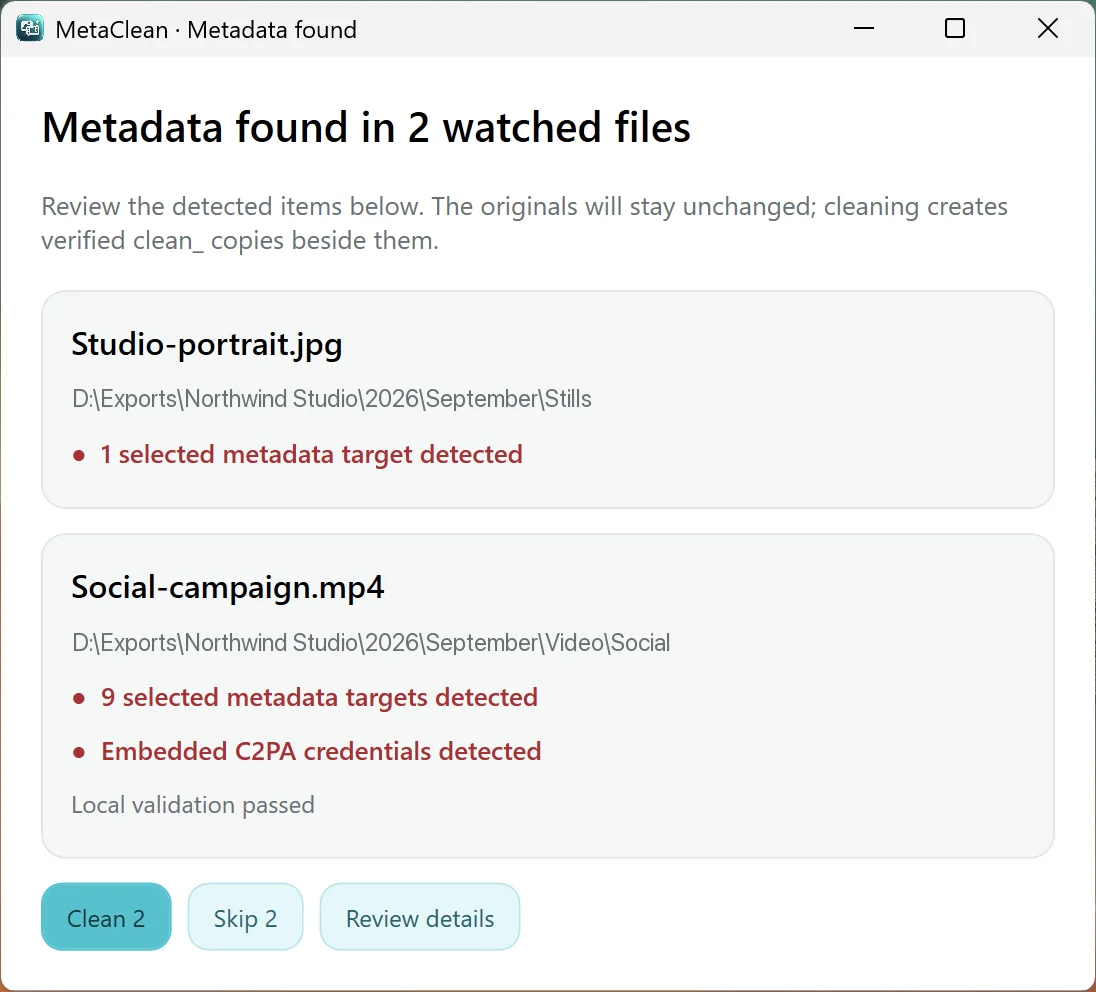
If you edit in CapCut every day, cleaning by hand gets old. MetaClean’s Watch Folders keeps running in the background and watches your export folder, every subfolder included. Each time a video lands there, exported from CapCut or copied in, it checks the file. If it carries the metadata that gets it labelled as AI, you get a quick prompt: Clean or Skip. If not, you never hear a thing.
- 1
Add your CapCut export folder
In MetaClean, open Watch folders › Add Folder and pick the folder CapCut exports into.
- 2
Export as usual
MetaClean checks each video once CapCut has finished writing it.
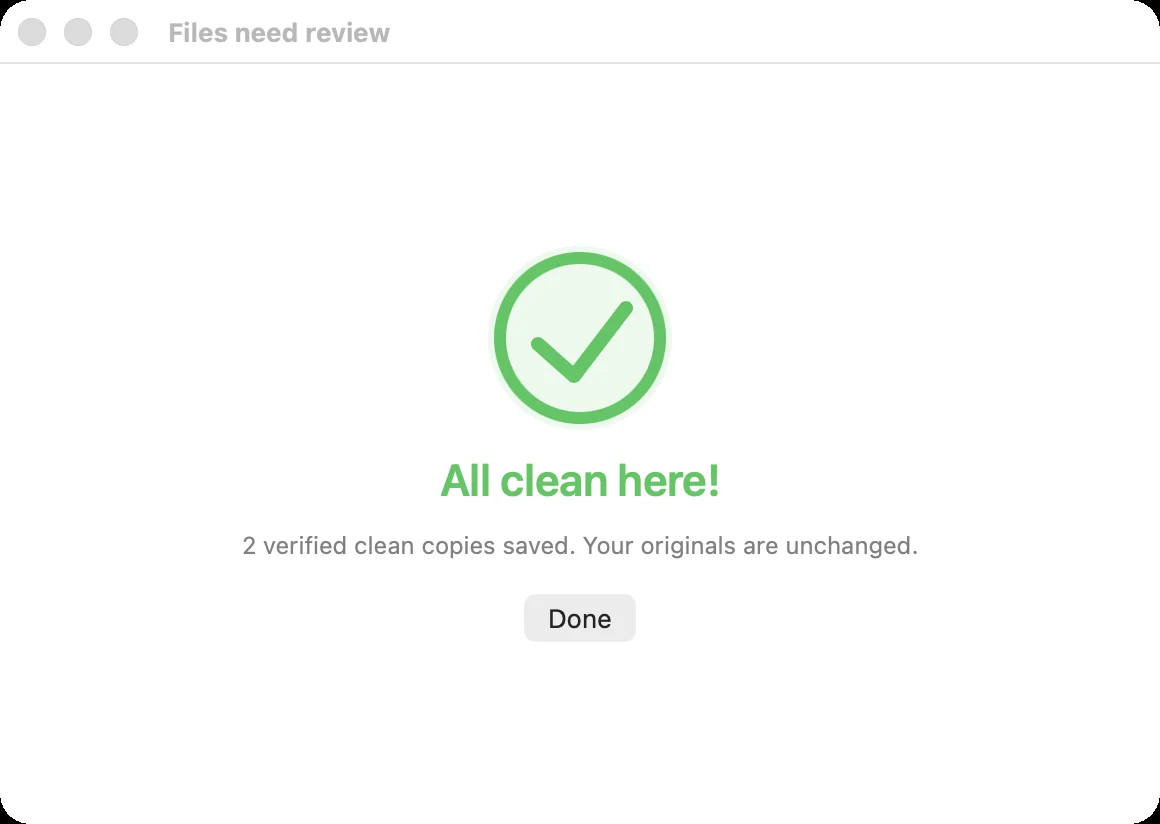
- 3
Click Clean, then post
“All clean here!” The clean copy is ready to upload to TikTok, Reels or Shorts.
The same folder works for every app
- Photoshop
- Premiere Pro
- CapCut
- Any other editor
Photoshop and Premiere Pro are trademarks of Adobe. CapCut is a trademark of Bytedance. MetaClean works with the files they export and is not affiliated with Adobe or Bytedance.
The AI-generated content switch
When you post, TikTok offers an AI-generated content setting under the post’s options. Switching it on adds the label by hand. When you post a clean copy, leave it off and the video goes up without the label. The same clean file also posts without “AI info” on Instagram and Facebook, and without the label on YouTube.
Your videos stay on your computer
Online removers want you to upload the video first. MetaClean works on your own Mac or Windows PC: no uploads, no account, no file size limits. More about privacy →
TikTok AI-generated label: questions and answers
How do I remove the AI-generated label on TikTok?
Delete the labelled video, remove the AI metadata from your original file with MetaClean (Credentials only or Privacy clean), and post the clean copy. The clean file carries no AI metadata, so there is nothing for TikTok to read when you upload it.
Why does my TikTok say “AI-generated”?
Because the video file you uploaded carries metadata that says an AI tool was used. TikTok reads Content Credentials (C2PA) on upload and labels the video automatically. Editing apps write that metadata into their exports after an AI feature is used: CapCut’s AI features, Premiere Pro’s Generative Extend, AI upscalers and AI video generators all do it.
Does CapCut add AI metadata to my video?
Yes, when you use its AI features. A CapCut export can carry AI metadata in the MP4, and TikTok reads it when you upload. Add your CapCut export folder to MetaClean’s Watch Folders and every export is checked automatically before you post.
Can I remove the label without deleting the video?
When the label comes from the file itself, the reliable fix is to post a clean copy: save your caption and sounds, delete the video, clean the original with MetaClean and upload it again.
Does cleaning lower the video quality?
No. MetaClean remuxes with stream copy: the video and audio streams are copied unchanged and only the metadata is removed. Your video keeps its full resolution, frame rate and sound.
What about the “AI-generated content” switch when I post?
That setting adds the label by hand. Leave it off when you post a clean copy, and the video goes up without the label.
Does it work for photos and carousels too?
Yes. MetaClean cleans JPG and PNG photos as well as MP4 and MOV videos, one file or a whole folder at once.
Is my video uploaded anywhere?
Never. MetaClean runs on your Mac or Windows PC. Watching, checking and cleaning all happen on your computer; the only thing it sends is a licence check.

Edit in CapCut.
Post without “AI-generated”.
MetaClean removes the AI metadata from your videos and photos, right on your Mac or PC. Try it free for 3 days, then $5 once.
Download free trial