Premiere Pro guide · updated October 2026
Premiere Pro Content Credentials: remove the AI label from your exports
You stretched a clip by a few frames with Generative Extend, exported, and your Reel went up as AI info. The label comes from Content Credentials inside the MP4, not from the footage. Here’s where it comes from, and how to clean every render automatically, without re-encoding a single frame.
Free for 3 days · then $5 once · no subscription · Buy a licence
Short answer
Premiere Pro attaches Content Credentials to your render after Generative Extend, and Instagram, TikTok and YouTube turn them into an AI label. Remove them from the MP4 or MOV before you upload, without re-encoding, for every render:
- Add your render folder (Premiere or Media Encoder output) to MetaClean’s Watch Folders.
- Export as usual. MetaClean checks each MP4 or MOV once the render finishes.
- When a video carries Content Credentials, MetaClean alerts you. Click Clean.
- Upload the
clean_copy to Instagram, TikTok or YouTube.
Get MetaClean freeFree for 3 days · then $5 once · no subscription
People are asking
Edited in Premiere, labelled AI
Why Premiere Pro exports get labelled as AI
Platforms don’t watch your video and guess. They read the file’s metadata, and Premiere Pro can write a very specific record into it: Content Credentials (C2PA). It gets there in two ways:
- Automatically, after a generative edit. Adobe’s FAQ says that when its generative AI tools, Generative Extend included, create or modify content, C2PA metadata is attached automatically and can’t be disabled for that content, under new AI transparency laws in California and the EU.
- At export. Premiere’s export settings have a Content Credentials section, and Media Encoder applies your Content Credentials preferences automatically.
Two seconds ofGenerative Extend.A whole Reel labelled.
The label follows the file. Clean the file and it’s gone.Where the label shows up
| Platform | What viewers see | How to keep it off |
|---|---|---|
| Instagram, Facebook, Threads | “AI info” on the Reel | Clean the MP4 before posting |
| TikTok | “AI-generated”, read from C2PA (TikTok newsroom) | Clean the MP4 before posting |
| YouTube | “Made with AI” | Clean the file before uploading |
| The “CR” Content Credentials badge | Clean the MP4 before posting |
Clean every Premiere render automatically
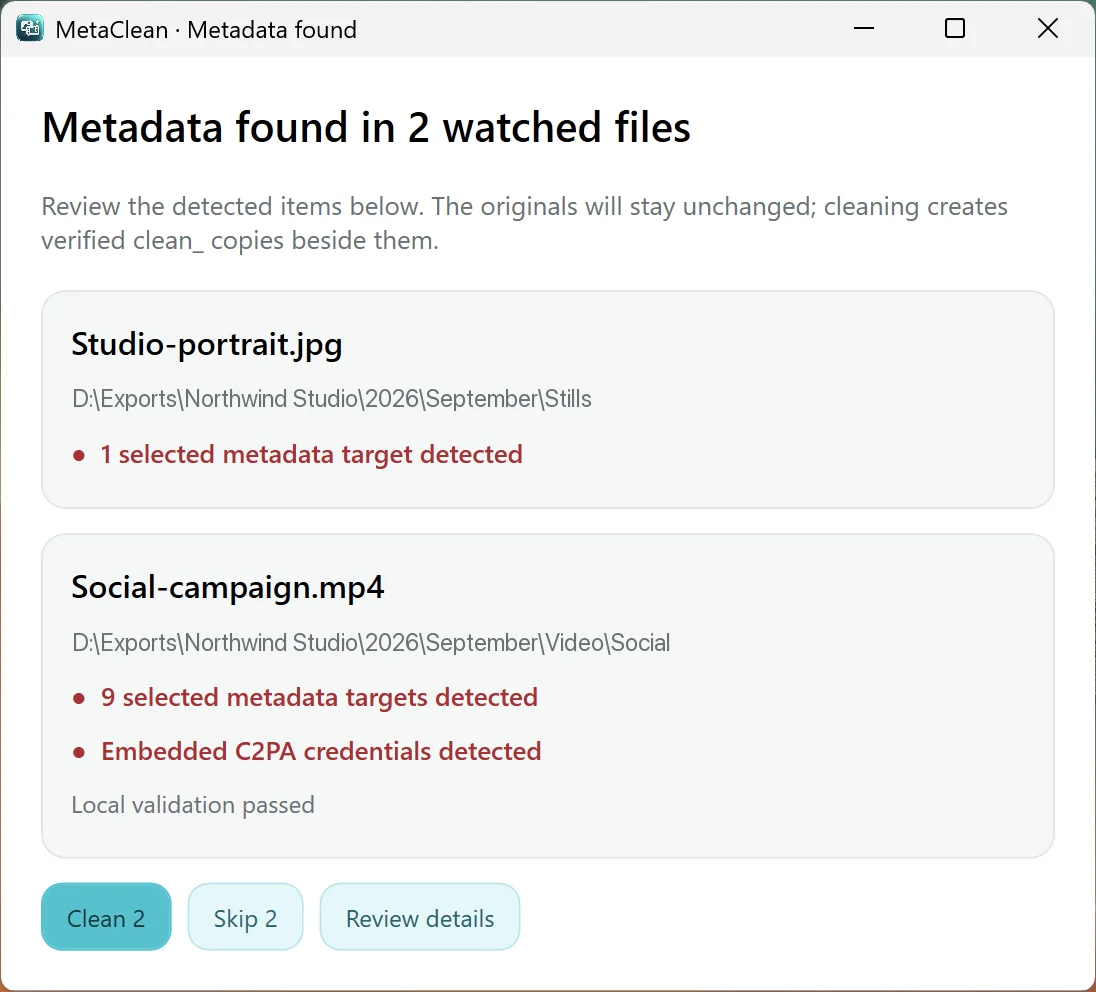
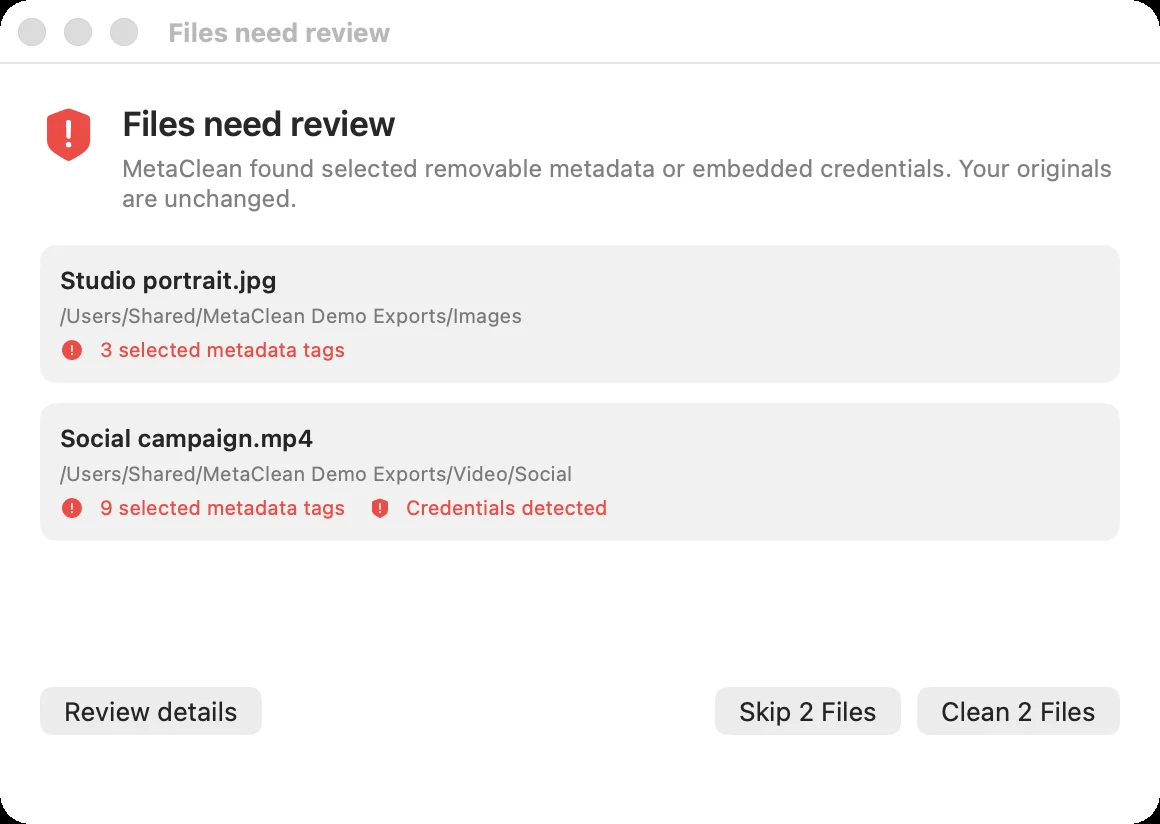
MetaClean’s Watch Folders keeps running in the background and watches your render folders, including every subfolder. Each time an MP4 or MOV lands there, rendered by Premiere Pro, queued in Media Encoder or simply copied in, it checks the file. If the video carries the metadata platforms read as AI, MetaClean alerts you and offers to clean it. If not, you never hear a thing.
- 1
Add your render folder
Open MetaClean › Watch folders and choose Add Folder. Pick where Premiere or Media Encoder saves, for example
Renders/Social. Subfolders are included. - 2
It removes just the AI metadata
Watch Folders alerts you when a file carries Content Credentials or AI-origin metadata, and Clean removes exactly that. GPS, device and recording details and the rest of your file’s metadata stay as they are. Want those gone too? Use Privacy clean on a single file or a batch folder.
- 3
Render like you always do
Export from Premiere, or queue a batch in Media Encoder. MetaClean waits until each file has finished rendering, then checks it.
- 4
Clean or Skip
A compact prompt shows which videos need attention and what was found, for example “9 selected metadata tags · Credentials detected”. Choose Clean, Skip or Review details.
- 5
Upload the clean copy
“All clean here!” The verified
clean_copy is saved beside your render, which stays untouched.
The same folder works for every app
- Photoshop
- Premiere Pro
- CapCut
- Any other editor

Photoshop and Premiere Pro are trademarks of Adobe. CapCut is a trademark of Bytedance. MetaClean works with the files they export and is not affiliated with Adobe or Bytedance.
No re-encoding, no quality loss
Re-exporting to “shake off” metadata costs time and quality. MetaClean doesn’t touch the picture or the sound: it remuxes the MP4 or MOV with stream copy, so the video and audio streams are copied exactly as Premiere rendered them and only the metadata changes. Then it checks the clean copy before saving it. More on that in our video metadata remover guide.
 Reel-v4.mp47 findings
- Content CredentialsAdobe Premiere Pro · Generative ExtendFoundRemoved
- AI source typeComposite with trained algorithmic mediaFoundRemoved
- Recording location34.0522° N, 118.2437° WFoundRemoved
- DeviceiPhone 16 Pro · Main cameraFoundRemoved
- EncoderAdobe Premiere Pro 26.0FoundRemoved
- Video streamH.264 · 1080×1920 · 30 fpsFoundKept
- Audio streamAAC · 48 kHz stereoFoundKept
Generated clips you import
B-roll from AI video generators and stock libraries often arrives with Content Credentials of its own. Drop those clips into a watched folder and MetaClean checks them on arrival too. For footage you already have, drag the whole folder into Batch folder and clean it in one go. Photos from the same shoot? See removing metadata from Photoshop exports.
Your footage stays on your computer
Online removers want you to upload the video first. MetaClean works on your own Mac or Windows PC: no uploads, no account, and no file size limits, so a 4 GB master is no different from a 15-second teaser. More about privacy →
Premiere Pro and the AI label: questions and answers
Why does my Premiere Pro video get an AI label?
Because the exported MP4 or MOV carries Content Credentials (C2PA). Adobe attaches C2PA automatically when its generative AI tools, Generative Extend included, are used on your content, and Premiere can also add Content Credentials at export. Instagram, Facebook, TikTok and YouTube read that metadata on upload and label the video.
How do I remove Content Credentials from a Premiere Pro export?
Add your render folder to MetaClean’s Watch Folders. Every MP4 or MOV that Premiere Pro or Media Encoder renders there is checked in the background, and when it carries Content Credentials or AI-origin metadata, a quick prompt lets you clean it. The clean_ copy is saved beside the original.
Can I turn off the AI metadata in Premiere Pro?
For generative edits, Adobe says the C2PA metadata is attached automatically and can’t be disabled, because of new AI transparency laws in California and the EU. Cleaning the exported file is how you post without it, and MetaClean does that on your own computer.
Does cleaning re-encode my video?
No. MetaClean remuxes with stream copy: the video and audio streams are copied unchanged and only the metadata is removed. It checks the streams after cleaning, so your Reel keeps its full quality and sound.
Does it work with Media Encoder queues?
Yes. MetaClean watches the output folder, so it catches files from Premiere Pro, Media Encoder queues, watch-folder presets and any other app that renders MP4 or MOV files there, as soon as each render finishes.
What about AI clips I import, like Firefly or other generated footage?
Generated clips often carry Content Credentials of their own. MetaClean checks every MP4 and MOV that lands in a watched folder, whether Premiere rendered it or you copied it in from a generator, so a stock or generated clip delivered as-is gets caught too.
Is there a file size limit?
No. A 4 GB interview cleans as easily as a 15-second teaser, and it never leaves your drive.
Does it work on Windows and Mac?
Yes. Watch Folders is in MetaClean for macOS 14+ on Apple Silicon and for Windows 11 (64-bit).

Render in Premiere.
Post without the AI label.
MetaClean watches your render folders and cleans the AI metadata on your Mac or PC, without re-encoding. Try it free for 3 days, then $5 once.
Download free trial