Document guide · October 2026
Remove metadata from a PowerPoint
The pitch deck you’re about to send still names its author, the last person who saved it, your company and manager, how long you spent on it, when you last printed it, and where every photo on your slides was taken. Here’s how to remove metadata from a PowerPoint presentation, on Windows and Mac, comments and speaker notes included.
Free for 3 days · then $5 once · no subscription · Buy a licence
 Q4 Campaign Pitch.pptx6 findings
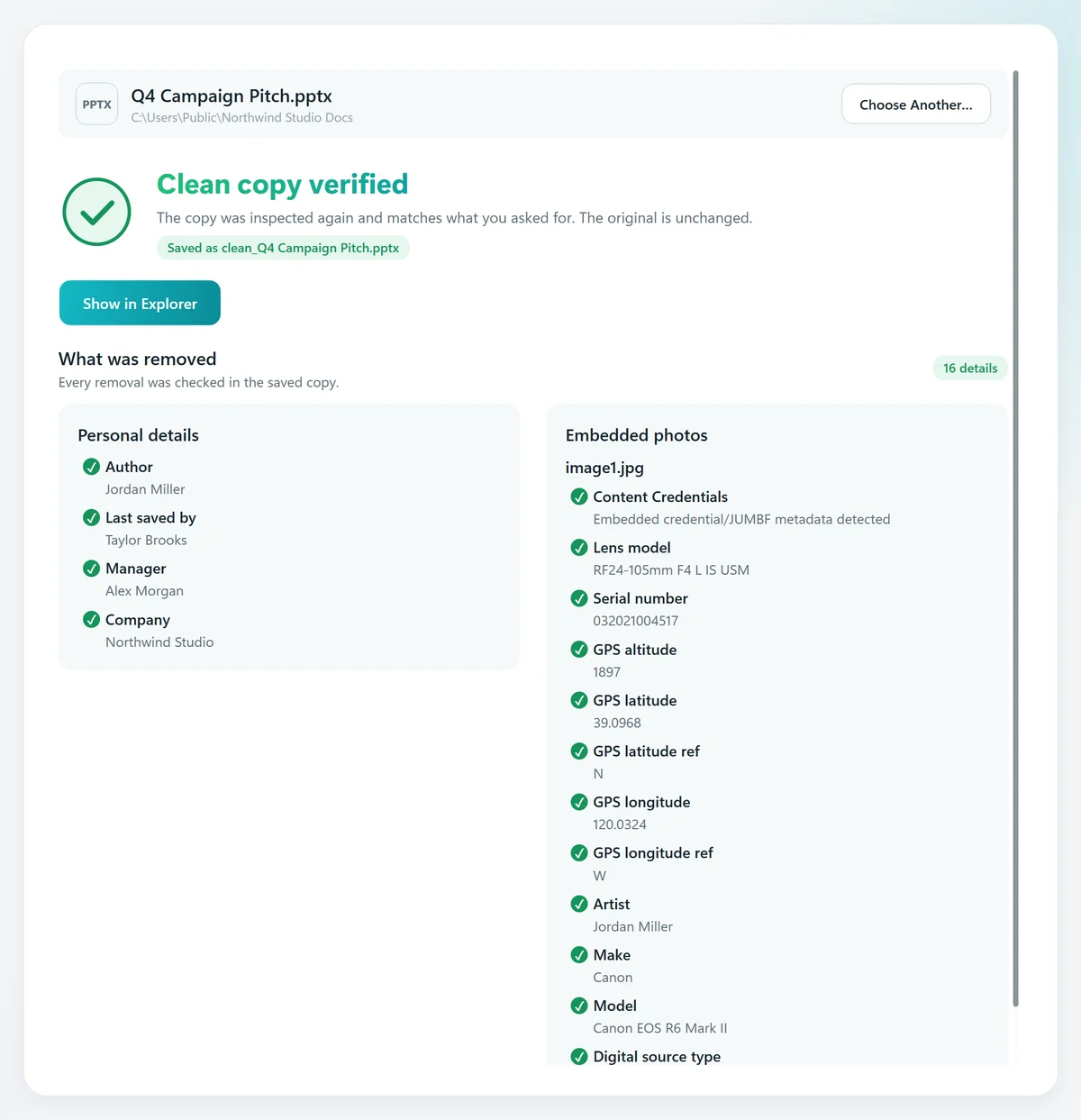
- AuthorJordan MillerFoundRemoved
- Last saved byTaylor BrooksFoundRemoved
- CompanyNorthwind StudioFoundRemoved
- ManagerAlex MorganFoundRemoved
- Editing time3 h 6 min · revision 14FoundRemoved
- Photo location39.0968° N, 120.0324° WFoundRemoved
- Slides and layouts3 slides · unchangedFoundKept
- ImagesCopied as they wereFoundKept
Short answer
PowerPoint metadata is the hidden information saved with a deck: author, last saved by, company, manager, dates, editing time, comments, speaker notes and the EXIF data of the photos on your slides. Three ways to remove it:
- Windows: File › Info › Check for Issues › Inspect Document › Inspect › Remove All for Document Properties, Comments and Presentation Notes.
- Mac: there’s no Document Inspector; clear Author, Company and Manager under File › Properties › Summary, then Review › Delete › Delete All Comments in This Presentation.
- Everything, photos included: open the PPTX in MetaClean and save a verified clean copy; your original stays as it was.
Get MetaClean freeFree for 3 days · then $5 once · no subscription
What metadata a PowerPoint presentation reveals
PowerPoint writes these details into every PPTX automatically, and anyone you send it to can read them under File › Info, or in Properties on Windows and Get Info on a Mac:
- Author and last saved bySensitiveYour name, and the name of the last person who saved it.
- Company and managerSensitiveFilled in from your Office account or your organisation’s template.
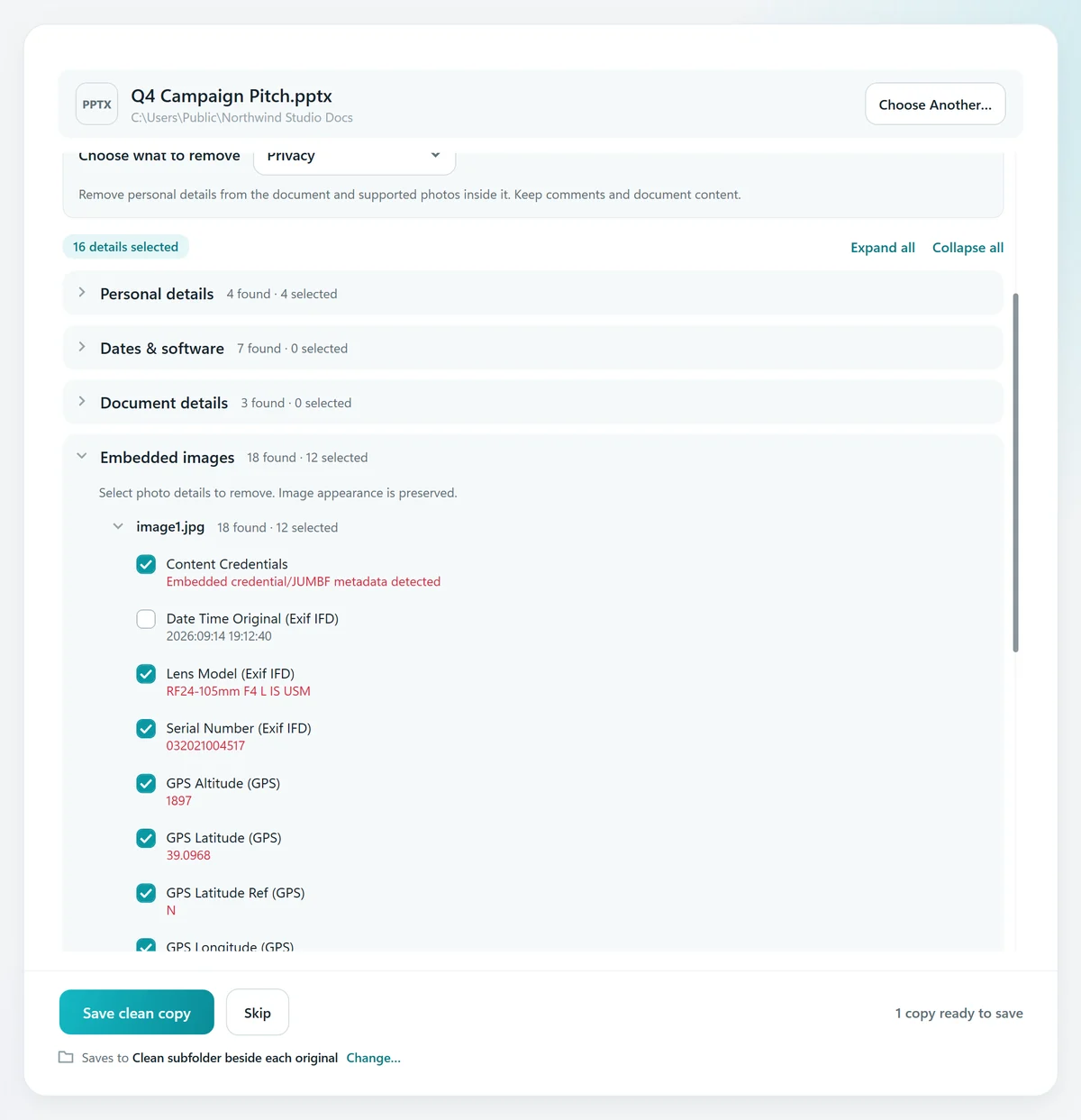
- Photos on your slidesSensitiveEach image keeps its EXIF: GPS location, camera, serial number.
- Comments and speaker notesSensitiveReview notes with names, and what you planned to say.
- Editing time and revisionsRevealingTotal minutes spent editing and how many times it was saved.
- DatesRevealingCreated, modified and last printed, to the second.
- Hidden slidesRevealingSlides you skipped in the room still travel with the file.
You sent the pitch.It showed where you shot it,and who worked on it.
The photos on your slides carry their GPS location until something removes it.How to use PowerPoint’s Document Inspector
PowerPoint for Windows has the Document Inspector built in. PowerPoint for Mac doesn’t, and unlike Word and Excel for Mac it has no option to remove personal information on save either, so there you clear the fields by hand:
PowerPoint for Windows
- Save a copy of the presentation first.
- Go to File › Info › Check for Issues › Inspect Document.
- Click Inspect, then Remove All next to Document Properties and Personal Information.
- Close the inspector and save.
PowerPoint for Mac
- Save a copy of the presentation first.
- Go to File › Properties › Summary and clear Author, Manager and Company.
- On the Review tab, choose Delete › Delete All Comments in This Presentation.
- Click OK and save.
What the inspector checks in each app, what to do on a Mac and why it can be greyed out: see the Document Inspector guide.
Source: Microsoft, Remove hidden data and personal information by inspecting documents, presentations, or workbooks.
What PowerPoint’s own tools leave behind
The Document Inspector and the manual Mac steps clean the presentation’s own properties. Three things still go out with the file:
Photos on slides
Every photo keeps its GPS location, camera model and serial number.
Your original
The inspector cleans the deck you have open, so the version with your details is gone unless you saved one first.
No proof
Nothing confirms afterwards that every field is really empty, file by file.
That’s the gap MetaClean fills: it removes the presentation’s metadata and the photo metadata on every slide, from a copy, and checks the result.
How to remove all metadata from a PowerPoint
- 1
Open the presentation in MetaClean
Choose Documents › Single document and pick your PPTX or PPT file. It’s read on your computer; nothing is uploaded.
- 2
See what it reveals
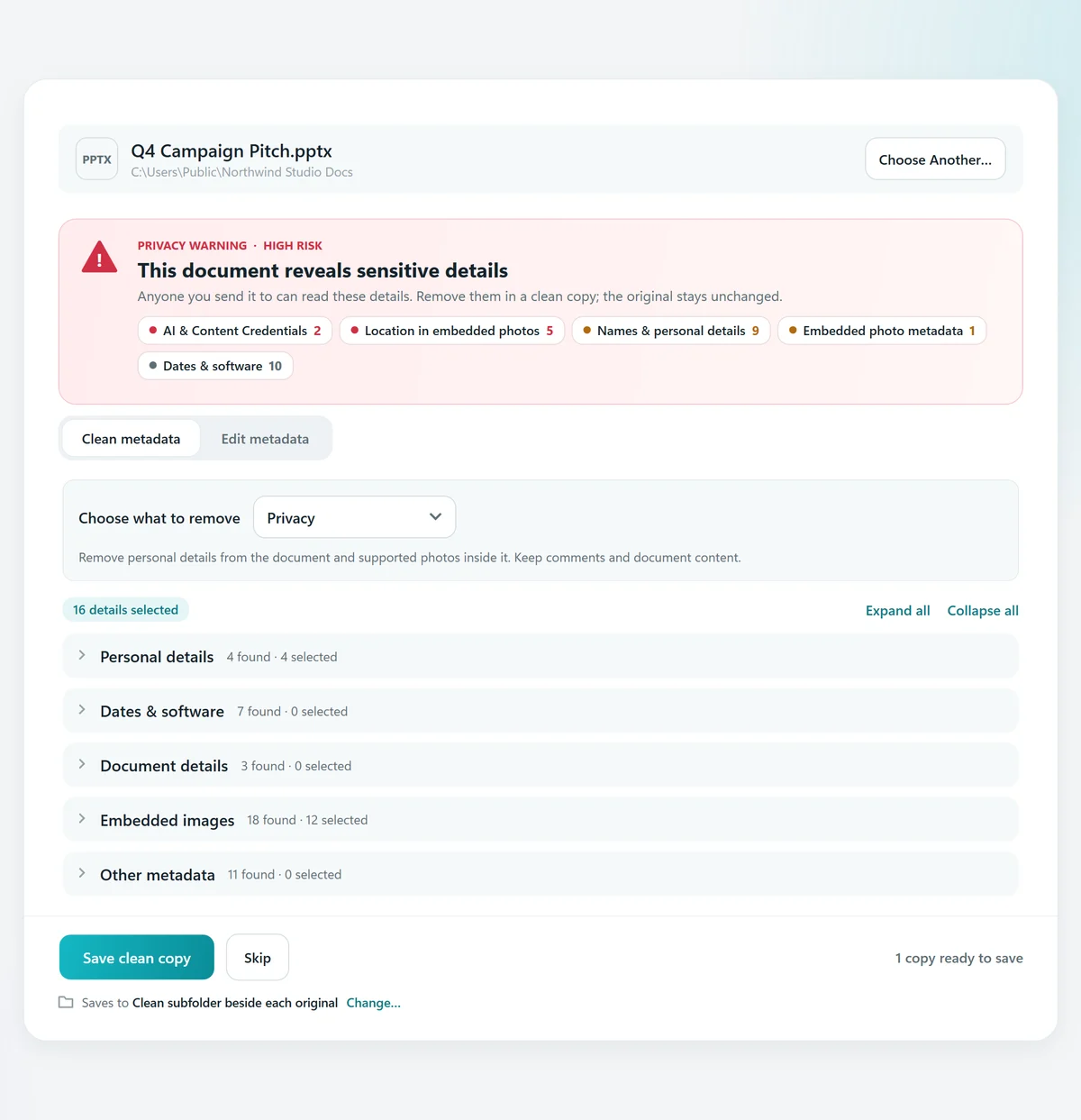
A privacy warning lists the author, last saved by, company, manager, editing time and every other field, plus the details hidden in the photos on your slides. Comments and hidden slides are pointed out too.
- 3
Choose what to remove
The Privacy preset selects names, company and photo location and camera details. Tick anything else you want gone, field by field.
- 4
Save the clean copy
MetaClean checks that every selected field is gone and the slides are unchanged, then saves the copy in a “Clean” folder beside the original.
PowerPoint’s inspector, online tools and MetaClean, compared
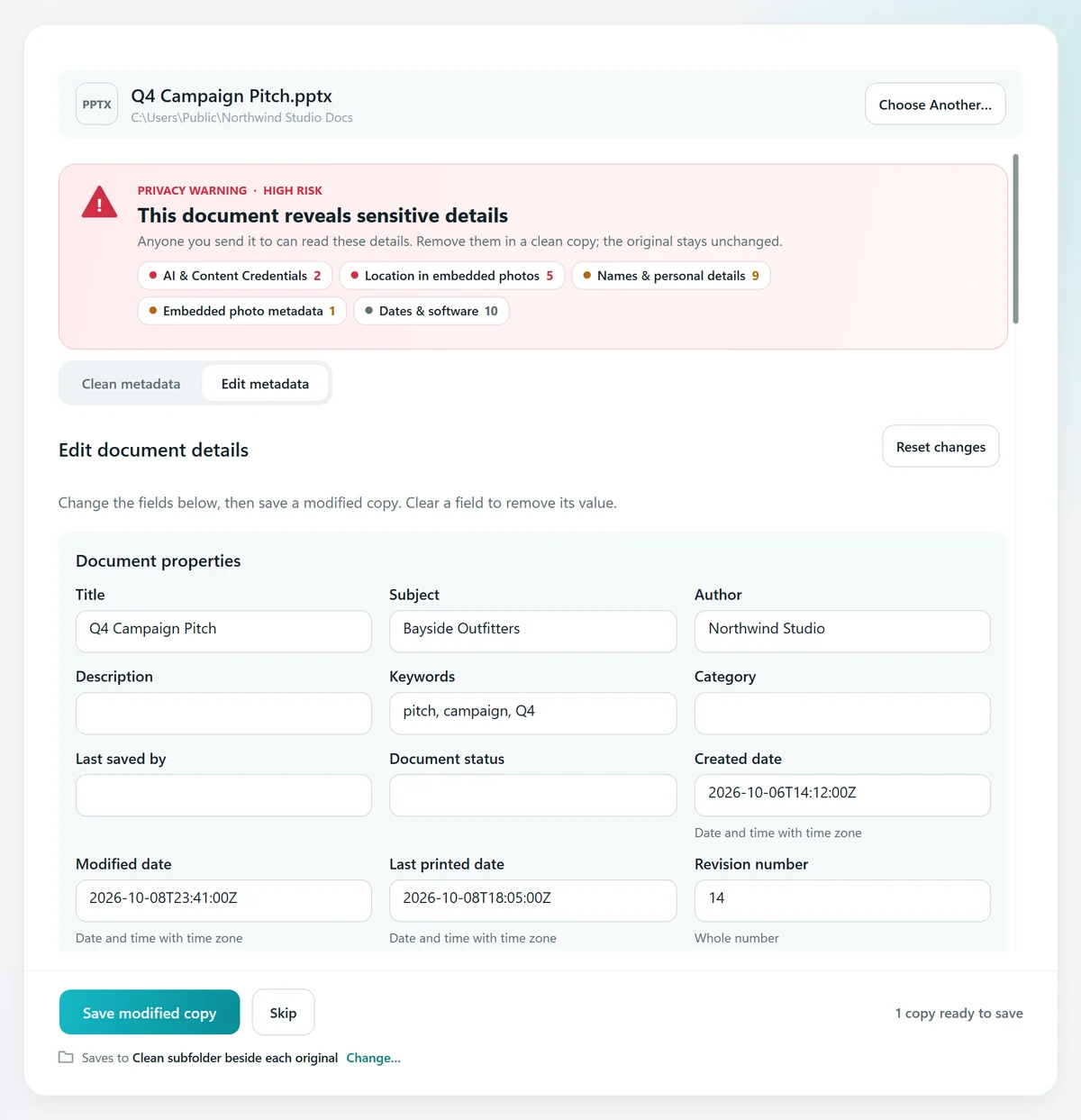
Change the author in PowerPoint instead of removing it
Sending a deck under your company’s name rather than yours? In PowerPoint for Windows, go to File › Info,
Word documents, Excel workbooks and PDFs work the same way: see the guides for Word, Excel and PDF files. For photos on their own, use the photo metadata remover.
Your presentations stay on your computer
Pitches, board decks and client work shouldn’t pass through someone else’s server to remove a name. MetaClean works on your own Mac or Windows PC: no uploads, no account, no file size limits. More about privacy →
People are asking
What your slide deck gives away
PowerPoint metadata: your questions
How do I remove metadata from a PowerPoint?
In PowerPoint for Windows, go to File › Info › Check for Issues › Inspect Document, click Inspect, then Remove All next to Document Properties and Personal Information, and save. PowerPoint for Mac has no Document Inspector, so clear the author, company and manager by hand under File › Properties › Summary, and remove comments with Review › Delete › Delete All Comments in This Presentation. To also remove the metadata inside the photos on your slides, and get a checked copy, open the PPTX in MetaClean and save a clean copy.
Where is the Document Inspector in PowerPoint?
In PowerPoint for Windows: File › Info › Check for Issues › Inspect Document. Tick what to check (comments, presentation notes,
How do I remove comments from a PowerPoint?
On a single slide, open the Comments pane and choose Delete All Comments on This Slide. To remove every comment in the deck, use the Document Inspector: File › Info › Check for Issues › Inspect Document › Inspect › Remove All next to Comments. Then open the presentation in MetaClean to remove the author, company and photo metadata as well.
How do I remove all speaker notes from a PowerPoint?
Run the Document Inspector (File › Info › Check for Issues › Inspect Document) with Presentation Notes ticked, then click Remove All next to Presentation Notes. It clears the notes on every slide at once. Save a copy first if you want to keep a version with your notes.
What metadata does a PowerPoint file contain?
The author, last saved by, company and manager, title, subject and keywords, created, modified and last printed dates, the revision number and total editing time, comments with their authors’ names, speaker notes, hidden slides, and the EXIF data of every photo on your slides, including GPS location and camera serial number.
How do I change the author in PowerPoint?
In PowerPoint for Windows, go to File › Info,
Does removing metadata change my slides?
No. MetaClean edits only the metadata fields you choose and copies every slide, layout, image and animation unchanged, then reads the copy back to confirm it. Photos are cleaned without being recompressed.
How do I remove metadata from many presentations at once?
Drop the folder into MetaClean’s Documents › Batch folder: it cleans every PPTX, PPT, DOCX, XLSX, PDF and OpenDocument file inside, subfolders included, and saves verified copies.
Does this work for Word and Excel too?
Yes. Word documents and Excel workbooks store the same author, company and date metadata, and MetaClean cleans DOCX, DOC, XLSX and XLS files the same way, plus PDF and OpenDocument ODT, ODS and ODP.

Send the deck.
Not your details.
Remove or edit PowerPoint, Word, Excel and PDF metadata on your own Mac or PC, with a verified clean copy every time. Free for 3 days, then $5 once.
Download free trial
Remove comments and speaker notes from a PowerPoint
Comments and speaker notes are part of the slides themselves, so PowerPoint is the place to remove them. The Document Inspector does both in one pass:
Open the Document Inspector
File › Info › Check for Issues › Inspect Document, with Comments and Presentation Notes ticked.
Remove them
Click Inspect, then Remove All next to Comments and next to Presentation Notes. Every slide is cleared at once.
Clean the rest in MetaClean
Open the saved deck in MetaClean to remove the author, company and the location and camera details of every photo, and get a verified copy.
To delete the comments on one slide only, open the Comments pane and choose Delete All Comments on This Slide.