
Pinterest guide · updated 2026
How to remove the Pinterest AI modified label
You pinned your own photo or artwork and Pinterest marked it AI modified. Here’s what the label means, the two very different reasons a Pin gets it, and how to remove the Pinterest AI modified label from your Pins, with a clean copy or an appeal.
Free for 3 days · then $5 once · no subscription · Buy a licence
Short answer
Pinterest adds AI modified when your image file carries an AI note (an IPTC “digital source type” tag or C2PA Content Credentials), or when its own detector thinks the image looks
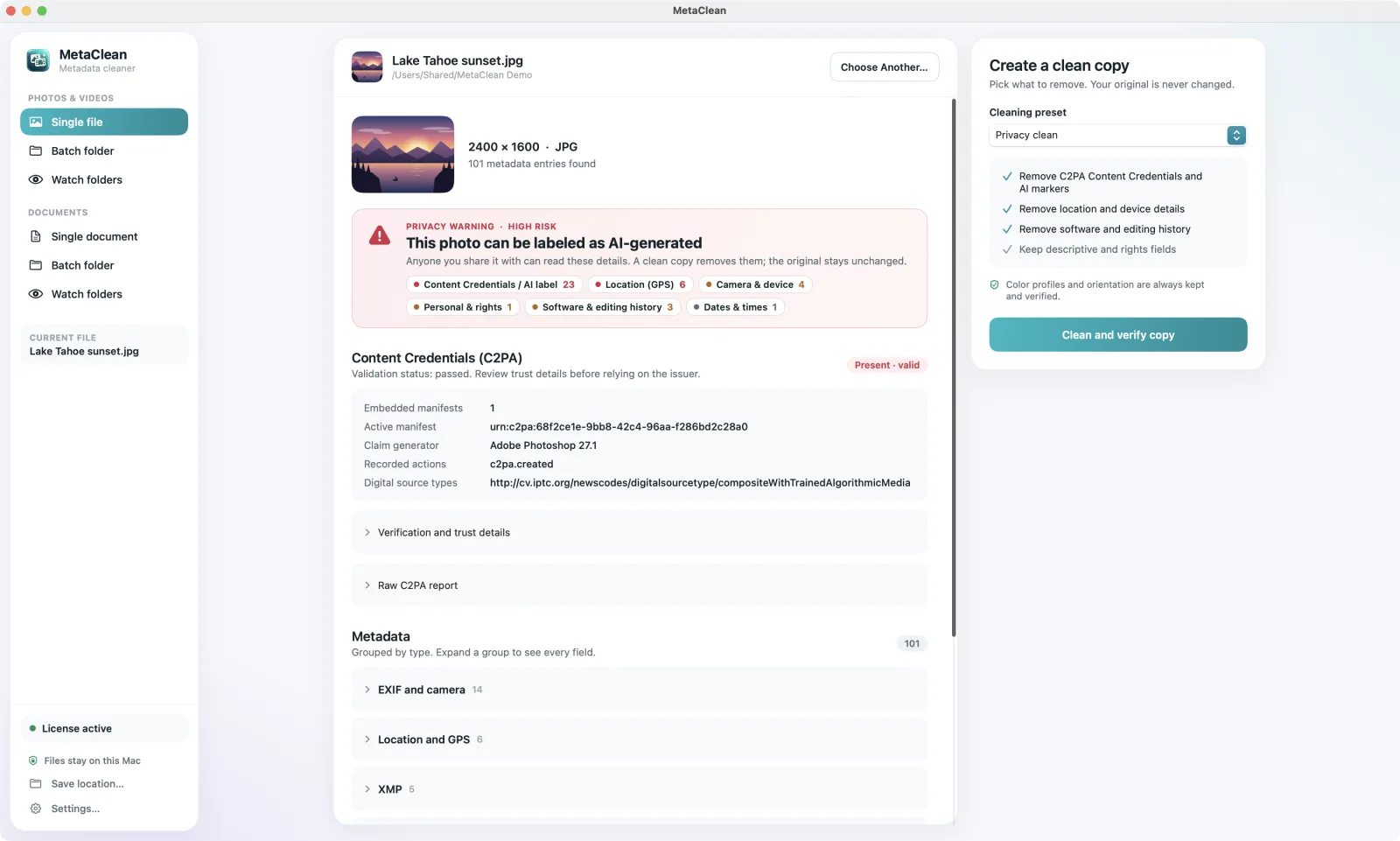
- Open your original image in MetaClean on your Mac or PC and check what it carries.
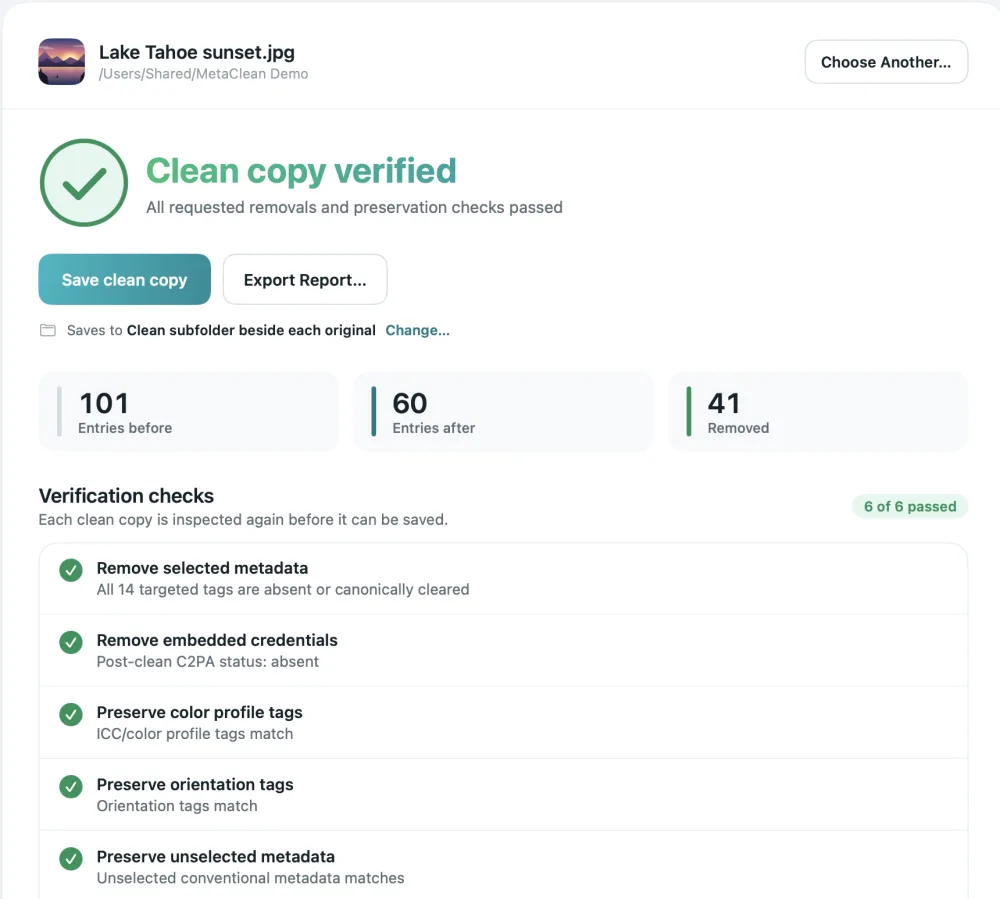
- Remove the AI metadata with Credentials only. Your pixels stay exactly as they are.
- Delete the labelled Pin (copy its title, description, link and board first).
- Create a new Pin from the clean copy. No AI note in the file, nothing for Pinterest to read.
No AI metadata in your file and the Pin is still labelled? Then Pinterest’s detector added it, so appeal the label.
Get MetaClean freeFree for 3 days · then $5 once · no subscription
New · Watch Folders
Stop cleaning by hand. Let MetaClean watch your exports.
Export from any editor.MetaClean checks every file.Only AI metadata interrupts you.
MetaClean runs in the background and watches your export folders, every subfolder included. When a photo or video is exported or copied in, it checks the file. If it carries the metadata that makes Instagram, Facebook, TikTok or YouTube label it as AI, you get a quick prompt: Clean or Skip. If it doesn’t, you never hear a thing.
Works with whatever you export from
- Photoshop
- Premiere Pro
- CapCut
- Any other editor

Photoshop and Premiere Pro are trademarks of Adobe. CapCut is a trademark of Bytedance. MetaClean works with the files they export and is not affiliated with Adobe or Bytedance.
People are asking
Real Pins, labelled “AI modified”
What does “AI modified” mean on Pinterest?
AI modified is the label Pinterest puts on image Pins it believes were created or edited with generative AI. Pinterest tested it for several months and rolled it out worldwide on 30 April 2025. Open any Pin in
Ads work slightly differently: the label isn’t on the image, it sits in the Pin’s ••• menu with the other ad details. When Pinterest’s systems flagged the ad rather than the advertiser disclosing it, the wording is softer: the Pin “may be modified with AI”.
For photographers, illustrators, crafters and small shops the label is a real problem. People see “AI” and assume the photo is fake or the artwork was generated, and that’s often not true.
Why your Pin got the AI modified label
Pinterest says it labels Pins in three ways. Knowing which one applies tells you what to do:
| Where the label comes from | What Pinterest looks at | How to fix it |
|---|---|---|
| Your file’s metadata | The hidden information stored inside the image. Pinterest follows the IPTC photo metadata standard, whose “digital source type” tag says an AI model made or edited the picture. C2PA Content Credentials carry the same value. | Remove the AI metadata and pin a clean copy |
| Pinterest’s detector | Classifiers that look at the picture itself, built to spot AI content “even if the content doesn’t have obvious markers” | Appeal through Pinterest support |
| Your own disclosure | The Pin’s owner said AI was used | Only disclose AI when it was used |
The first one causes most of the surprise labels on real photos and artwork, because the AI note gets into files you’d never think of as “AI”.
Apps that write the AI note into your image
These tools can add an IPTC AI source tag or Content Credentials to the images they export, even when the AI part was a small fix:
| App or feature | Typical edit | What it writes |
|---|---|---|
| Canva Magic Edit, Magic Eraser, Magic Expand | Remove an object, extend a background | C2PA or IPTC AI tags |
| Photoshop Generative Fill / Expand | Remove a cable, widen the frame | C2PA Content Credentials with an AI source type |
| Lightroom Generative Remove | Erase a person or a sign | C2PA Content Credentials |
| Adobe Firefly, Adobe Express | Generated backgrounds and elements | C2PA Content Credentials |
| Google Photos Magic Editor | Move or erase objects | IPTC digital source type |
| Samsung Galaxy AI photo editing | Object eraser, generative edit | AI metadata in the file |
| AI upscalers and background removers | Sharpen a product photo, cut it out | C2PA or IPTC, depending on the app |
Your photo.One AI fix.Labelled.
A single generativeIf the image really was made by an AI image generator, the label is accurate, and Pinterest asks creators to disclose it. This guide is for the much more common case: your own photo, product shot or artwork, labelled because of one AI edit or a tool’s leftover metadata.
Is the label from your file or from Pinterest’s detector?
Check the file you pinned. It takes a few seconds and tells you which fix you need:
-
1
Find the image you actually uploaded
Use your export from Canva, Photoshop, Lightroom or your phone, not a copy downloaded back from Pinterest.
-
2
Look inside it
Drop it into our free EXIF and C2PA viewer (it runs in your browser, nothing is uploaded) or into MetaClean. Look for Content Credentials or an AI source type.
-
3
Read the result
AI metadata found: the label came from your file, so clean the file and pin it again. Nothing found: Pinterest’s detector labelled the picture itself, so appeal the label.
How to remove the AI modified label from a Pin, step by step
Pinterest reads the metadata when the image is uploaded, and you can’t swap the image on an existing Pin. So the fix is a new Pin made from a file without the AI note. With MetaClean it takes about a minute, and the file never leaves your computer.
-
1
Open the original image in MetaClean
Drop your export into MetaClean, the AI metadata cleaner for Mac and Windows, or scan the whole folder you pin from.
-
2
Choose “Credentials only”
It removes the Content Credentials and the IPTC AI source tag and leaves everything else. Choose Privacy clean to also remove the photo’s location and camera details.
-
3
Save the clean copy
MetaClean cleans a copy, checks it again, and saves it only when the AI note is gone and the pixels are unchanged. Your original stays as it was.
-
4
Delete the labelled Pin
Copy its title, description, destination link and board first. Deleting the Pin removes its saves, so if the Pin already does well, consider an appeal instead.
-
5
Create a new Pin from the clean copy
Upload the clean image, paste your details back and pick the same board. With no AI note in the file, there’s nothing in the metadata for Pinterest to label.
Pinning video too? Video Pins are read the same way, and our video metadata remover cleans MP4 and MOV files without
Pinterest labelled a real photo or painting: appeal it
Pinterest says its classifiers aren’t perfect, and it set up an appeals system for exactly this. If your image carries no AI metadata and the Pin still shows AI modified, cleaning the file won’t change anything, because the detector judged the picture itself. Appeal instead:
- Contact Pinterest support from the Pinterest Help Center and choose the option about Gen AI labels.
- Include the Pin’s link and say how you made the image: camera and editing app, or the drawing app for artwork.
- Mention that the file has no AI metadata. A screenshot of the clean result in MetaClean or the free viewer helps.
An appeal keeps the Pin, its saves and its link. It’s the better route for a Pin that already performs well, even when the label came from the file, once your next uploads are clean.
How to see fewer AI modified Pins in your feed
Many people searching “turn off AI modified on Pinterest” don’t pin at all: they want fewer AI images in their home feed. Since October 2025 Pinterest has two controls for that:
On a single Pin
Tap the ••• on an AI modified Pin and choose Show fewer AI Pins. Pinterest remembers the choice and gradually shows you less.
For whole categories
Open Settings, then Refine your recommendations, then Gen AI interests, and switch off categories such as art, beauty, home decor or fashion.
Both work on labelled Pins only, so AI images Pinterest hasn’t caught can still appear. They tilt your feed toward
Pinning a lot? Clean every export automatically
If you design Pins in Canva or edit product photos every week, cleaning one file at a time gets old. Point MetaClean’s Watch Folders at your exports folder: every new image is checked a few seconds after it’s saved, and a clean copy is ready before you open Pinterest. A whole folder of existing Pins cleans in one go with Scan Folder.
Posting the same images elsewhere? The same AI note causes “AI info” on Instagram, Facebook and TikTok. One clean copy works everywhere. Here’s the overview of how to remove the AI label on every platform.
Why clean on your own computer
Most metadata removers online ask you to upload your image to their server first. MetaClean runs on your Mac or Windows PC: your photos and artwork never leave your computer, there’s no account, and there are no file size limits. More about privacy →
Pinterest AI modified: questions and answers
How do I remove the “AI modified” label from my Pinterest Pin?
If the label comes from your file, remove the AI metadata from your original image with MetaClean (choose Credentials only), delete the labelled Pin and create a new Pin with the clean copy. If your file has no AI metadata and the Pin is still labelled, Pinterest’s own detector added it: contact Pinterest support to appeal the label.
What does “AI modified” mean on Pinterest?
“AI modified” is the label Pinterest shows on image Pins it believes were created or edited with generative AI. It appears at the bottom left of the image when you open the Pin in
Why does my Pinterest Pin say “AI modified” when I didn’t use AI?
Usually because an app wrote an AI note into the image file: Canva’s Magic tools, Photoshop Generative Fill, Lightroom’s Generative Remove, Google’s Magic Editor or Samsung’s Galaxy AI editor all can, even for a tiny fix. Pinterest reads that note when you upload. Less often, Pinterest’s detector mistakes a real photo or a painting for AI, which you can appeal.
How does Pinterest detect AI images?
Three ways. It reads the image’s metadata, following the IPTC photo metadata standard (the “digital source type” tag that AI features write, also carried inside C2PA Content Credentials). It runs its own classifiers that look at the image itself. And it labels Pins whose owner disclosed that AI was used.
Can I remove “AI modified” without deleting my Pin?
You can’t replace the image of an existing Pin, so when the label comes from the file, the fix is a new Pin made from a clean copy. If you’d rather keep the Pin and its saves, appeal the label through Pinterest support instead, especially when your image contains no AI metadata.
How do I turn off AI modified Pins in my feed?
Tap the three dots on an AI modified Pin and choose “Show fewer AI Pins”, or open Settings, then Refine your recommendations, then Gen AI interests, and switch off the categories you want less of. Pinterest added these controls in October 2025. They reduce AI Pins in your feed, they don’t remove them all.
Does removing the metadata change my image?
No. MetaClean removes the metadata, not pixels. It doesn’t
Does a screenshot remove the AI modified label?
A screenshot drops the metadata, but it also drops resolution, can shift colours, and still leaves Pinterest’s detector free to label the image. A clean copy keeps the
Do I have to upload my image to a website to remove the label?
Not with MetaClean. It runs on your own Mac or Windows PC, so your images never leave your computer. Most online metadata removers need you to upload the file first.

Pin your real photos and artwork.
Without “AI modified”.
MetaClean removes the AI metadata from your images, right on your Mac or PC. Try it free for 3 days, then $5 once.
Download free trial