Document guide · October 2026
Change or remove the author of a PDF
Open any PDF’s properties and there’s a name in the Author field: yours, a colleague’s, or whoever set up the computer it was made on. Here’s how to change the author of a PDF or remove it, with Acrobat, on a Mac without it, or in Word before you export, and how to make sure the old name is really gone.
Free for 3 days · then $5 once · no subscription · Buy a licence
 Q4 Campaign Proposal.pdf4 findings
- AuthorJordan MillerFoundRemoved
- Author, XMP copyJordan MillerFoundRemoved
- Creation softwareMicrosoft Word for MacFoundRemoved
- Earlier versions2 saved edits inside the fileFoundRemoved
- Title and subjectKept as they wereFoundKept
- Pages, links and fonts8 pages · unchangedFoundKept
Short answer
The author of a PDF is a document property, saved twice inside the file: in the properties and in an XMP copy. Three ways to change or remove it:
- Acrobat Pro: File › Properties › Description, then edit or clear the Author field, click OK and use File › Save As.
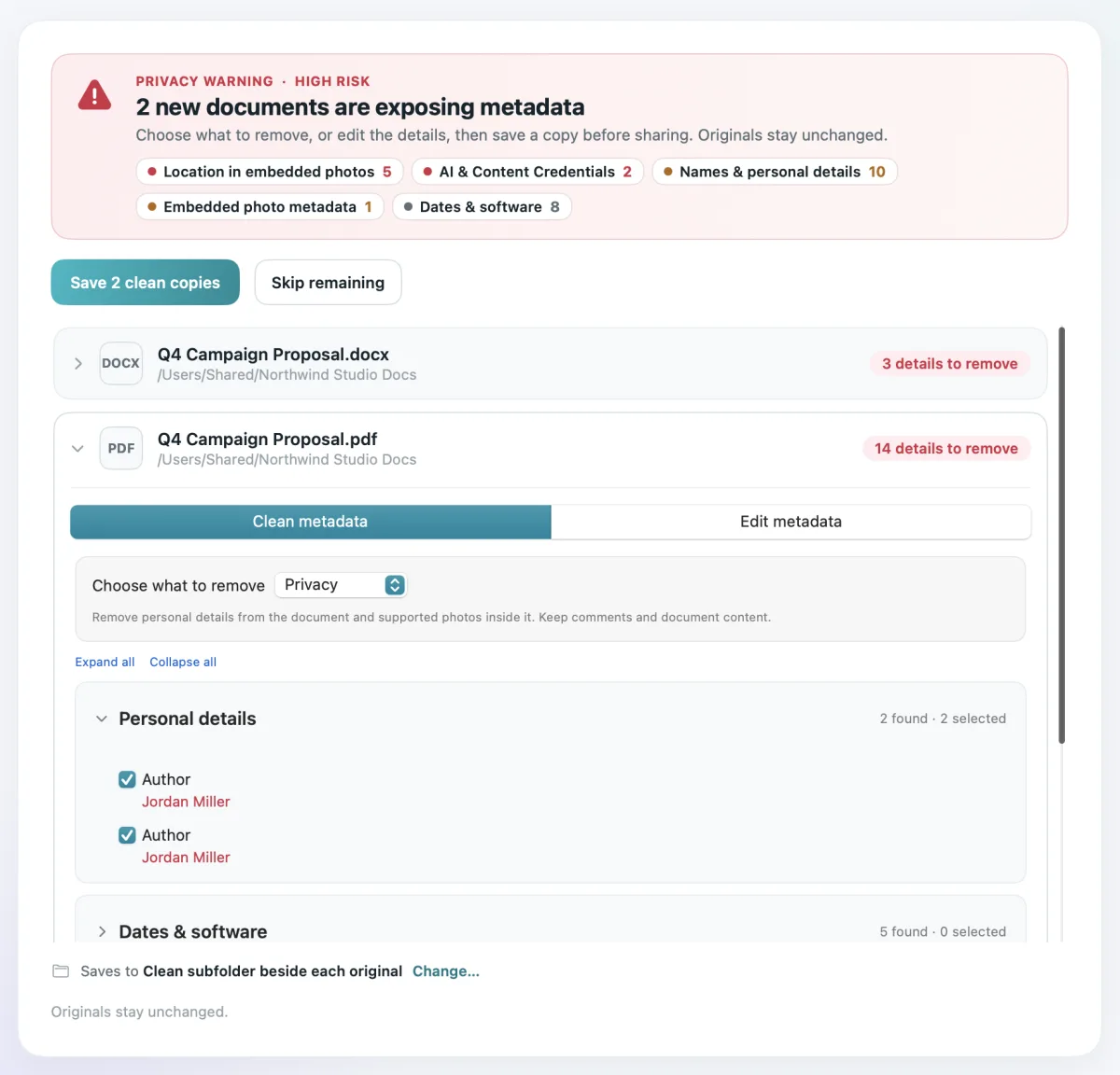
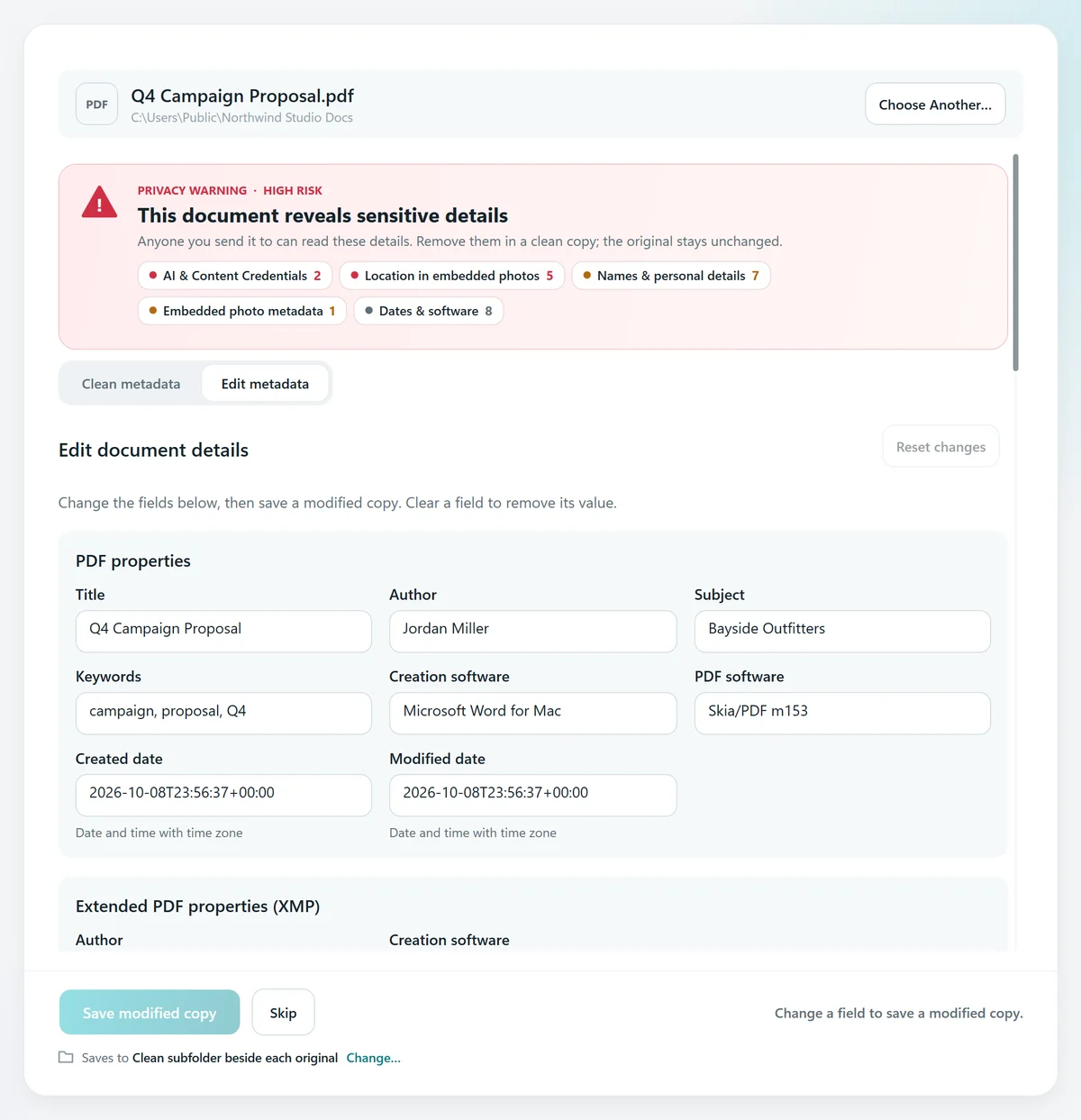
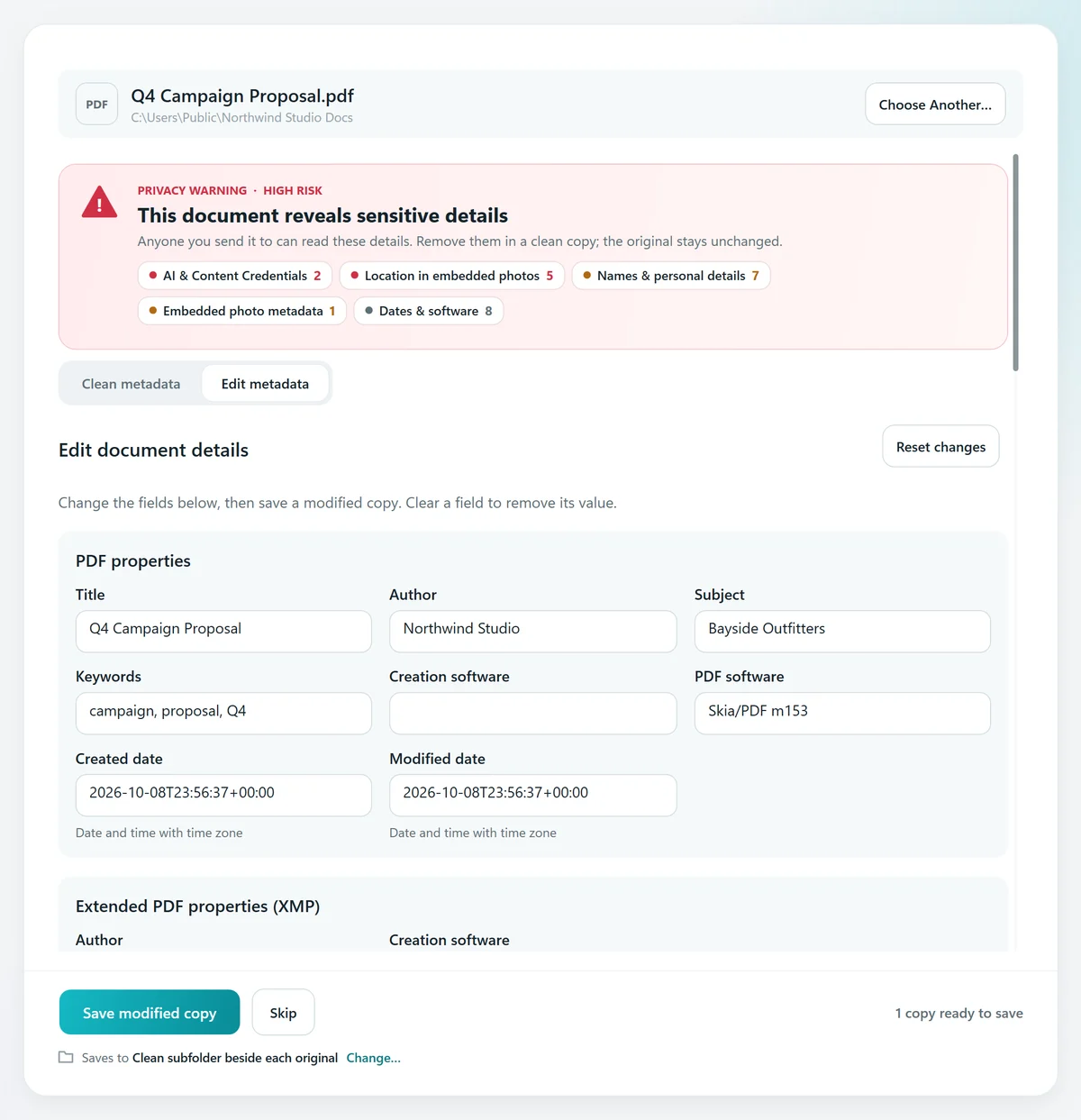
- Mac or PC without Acrobat: open the PDF in MetaClean, change the author under Edit metadata or remove it with the Privacy preset, and save a verified copy.
- At the source: change the author in Word (File › Info, or File › Properties on a Mac) and export the PDF again.
Get MetaClean freeFree for 3 days · then $5 once · no subscription
Where a PDF stores the author
The name you see under File › Properties in Acrobat, Tools › Show Inspector in Preview, or Get Info on a Mac isn’t in one place. To change the author of a PDF for good, every copy has to change:
Document properties
The Author field most apps show, next to the title, subject and keywords.
The XMP copy
The same name again in an XMP metadata block, which some viewers read first.
Earlier versions
Edits can be added to the end of the file, so an older version with the old name stays inside.
Comment authors
Every comment and sticky note carries the name of the person who made it.
That’s why a name you changed can still turn up: one copy changed and another didn’t. More on what else a PDF carries in how to remove metadata from a PDF.
How to change the author of a PDF in Acrobat
Acrobat Pro can edit the author. Acrobat Reader, the free version, can only show it.
- 1
Open the document properties
Open the PDF in Acrobat Pro and choose File › Properties, or press Ctrl+D on Windows and Cmd+D on a Mac.
- 2
Change or clear the author
On the Description tab, type the new name in Author, or delete it to remove the author from the PDF. Click Additional Metadata to check the other author fields too.
- 3
Save it as a new file
Click OK, then use File › Save As rather than Save, so Acrobat writes the whole file again instead of adding your change to the end of it.
Source: Adobe, Document properties and metadata overview in Acrobat.
How to change the author of a PDF on a Mac
Preview shows the author of a PDF under Tools › Show Inspector, but it can’t change it. macOS has one
Print to a new PDF
- Open the PDF in Preview and choose File › Print.
- Open the PDF menu at the bottom and choose Save as PDF.
- Type the new name in Author, or leave it empty, and save.
What it costs you
The new PDF is redrawn from the printed pages, so links, bookmarks and form fields can be lost, and comments become part of the page or are left out. It also adds macOS as the PDF software.
To change the author on a Mac and keep the PDF exactly as it was, use MetaClean for Mac: it edits the author in the file itself, in both copies, and saves a modified copy beside the original.
Fix the author before you make the PDF
Most PDFs get their author from the app that exported them. If you still have the original, change it there and export again:
Word for Windows
- Go to File › Info,
right-click the name under Author and choose Edit Property or Remove Person. - Or, when you save as PDF, click Options and untick Document properties.
Word for Mac
- Go to File › Properties › Summary and change or clear Author.
- Then choose File › Save As and pick PDF as the format.
Excel and PowerPoint work the same way. See how to remove metadata from Word, Excel and PowerPoint files.
How to change or remove a PDF’s author with MetaClean
- 1
Open the PDF
Choose Documents › Single document and pick the PDF. It’s read on your computer; nothing is uploaded.
- 2
To change it, edit the author
Switch to Edit metadata and type the new name in Author. The title, subject, keywords, creation software and dates can be changed the same way.
- 3
To remove it, clean the file
Stay on Clean metadata: the Privacy preset selects the author, company and the location and camera details of photos inside.
- 4
Save the copy
MetaClean updates the document properties and the XMP copy together, rewrites the PDF without its earlier versions and checks the result before saving.
Acrobat, printing to PDF and MetaClean, compared
Online PDF editors can change the author too, but your file is uploaded to someone else’s server to do it. Think twice with contracts, CVs and client documents.
Your PDFs stay on your computer
Contracts, CVs and client files shouldn’t pass through someone else’s server to change a name. MetaClean works on your own Mac or Windows PC: no uploads, no account, no file size limits. More about privacy →
People are asking
Whose name is on your PDF?
PDF author: your questions
How do I change the author of a PDF?
In Adobe Acrobat Pro, open the PDF, choose File › Properties (Ctrl+D on Windows, Cmd+D on a Mac), type the new name in the Author field on the Description tab, click OK and save with File › Save As. Without Acrobat, open the PDF in MetaClean on your Mac or PC, switch to Edit metadata, change the author and save a modified copy.
How do I remove the author name from a PDF?
Clear the Author field in Acrobat Pro’s File › Properties and save with Save As, or open the PDF in MetaClean and save a clean copy: the Privacy preset removes the author from the document properties and from the XMP copy, along with the company, creation software and the earlier versions stored in the file.
How do I change the author of a PDF on a Mac?
Preview shows the author in Tools › Show Inspector but can’t change it. You can print the PDF to a new one (File › Print › PDF › Save as PDF) and type a new name in the Author field, but the copy is redrawn and can lose links, bookmarks and form fields. MetaClean for Mac changes the author in place and keeps the PDF exactly as it was.
How do I change the author of a PDF without Acrobat?
Acrobat Reader can only show the author. Use MetaClean’s Edit metadata on a Mac or Windows PC, which changes the author, title, subject, keywords and dates without uploading the file, or fix the name in the app that made the PDF and export it again.
Why does the old author still show after I changed it?
A PDF stores the author twice: in the document properties and in an XMP metadata block. Some editors change only one, and some viewers read the other. The old name can also survive in an earlier version saved inside the file. MetaClean updates both copies and rewrites the file without the earlier versions.
Why does my PDF show my name as the author?
The app that made the PDF filled it in: Word, Excel and PowerPoint copy the Author from the document’s properties, which come from your Office account, and many apps use your computer’s user name. Change it there before you export, or change it in the PDF afterwards.
How do I change the author name on comments in a PDF?
That’s a separate name. In Acrobat or Acrobat Reader, open Preferences › Commenting and untick “Always use
Can I change the author in Acrobat Reader?
No. Acrobat Reader shows File › Properties but the fields can’t be edited. Changing them needs Acrobat Pro or another PDF editor, such as MetaClean.
How do I remove the author from many PDFs at once?
Drop the folder into MetaClean’s Documents › Batch folder. It removes the author and other personal details from every PDF inside, subfolders included, and saves a verified copy of each.

Your PDF.
The name you choose.
Change or remove the author, title and dates of any PDF, Word, Excel or PowerPoint file on your own Mac or PC, with a verified copy every time. Free for 3 days, then $5 once.
Download free trial
Change the author name on PDF comments
The name on a comment or sticky note isn’t the document’s author: it comes from the app you commented in. In Acrobat or Acrobat Reader:
For new comments
Open Preferences › Commenting (under the Acrobat menu on a Mac), untick Always useLog-in Name for Author name and click OK.
For comments you already made
Source: Adobe, Change comment author name in Acrobat.