Document guide · October 2026
Document Inspector in Word, Excel and PowerPoint, including on a Mac
The Document Inspector finds the names, comments and hidden content saved inside an Office file and removes them before you send it. Here’s where it is in Word, Excel and PowerPoint, what it checks in each, what to do on a Mac, where it doesn’t exist, and what it still leaves in the file.
Free for 3 days · then $5 once · no subscription · Buy a licence
 Client Report.docx6 findings
- AuthorJordan MillerFoundRemoved
- Last saved byTaylor BrooksFoundRemoved
- CompanyNorthwind StudioFoundRemoved
- Comments4 review notes with namesFoundRemoved
- Photo location39.0968° N, 120.0324° WFoundRemoved
- Photo cameraSerial 032021004517FoundRemoved
- Text and formatting12 pages · unchangedFoundKept
Short answer
The Document Inspector is a
- Windows: in Word, Excel or PowerPoint, File › Info › Check for Issues › Inspect Document › Inspect, then Remove All next to each result.
- Mac: there’s no Document Inspector. Word (Tools › Protect Document) and Excel (Settings › Security) can remove personal information on save; PowerPoint can’t.
- Photos and PDFs too: the inspector leaves photo GPS behind and doesn’t open PDFs. MetaClean cleans all of it on a Mac or PC, in a verified copy.
Get MetaClean freeFree for 3 days · then $5 once · no subscription
What the Document Inspector is
Every Word document, Excel workbook and PowerPoint deck stores more than what you see on the page: your name as the author, the last person who saved it, your company, review comments, tracked changes, hidden rows and slides, and speaker notes. The Document Inspector is the tool built into Office for Windows that lists all of that in one place and lets you remove each kind with one click.
It’s worth running on anything that leaves your team: a CV, a contract, a proposal, a price list, a pitch deck.
How to run the Document Inspector in Word, Excel and PowerPoint
The steps are the same in all three apps on Windows (Microsoft 365, Office 2024, 2021, 2019 and 2016):
- 1
Save a copy first
Use File › Save As and work on the copy. What the inspector removes can’t always be restored, even with Undo.
- 2
Open the inspector
Go to File › Info › Check for Issues › Inspect Document. If Office asks you to save first, click Yes.
- 3
Choose what to check and inspect
Tick the kinds of content to look for, then click Inspect. All of them are ticked by default.
- 4
Remove what it found
Click Remove All next to each result you want gone, such as Document Properties and Personal Information. Click Reinspect to check again, then Close and save.
Source: Microsoft, Remove hidden data and personal information by inspecting documents, presentations, or workbooks.
What the Document Inspector checks in each app
Each app looks for its own kinds of hidden content. Some items are only pointed out, and you have to remove them yourself:
| Checks for | Word | Excel | PowerPoint |
|---|---|---|---|
| Comments and annotations | Comments, revisions, versions | Comments and annotations | Comments, revision tracking data |
| Document properties and personal information | Yes | Yes | Yes |
| Hidden content | Hidden text, invisible content | Hidden rows, columns and sheets | Invisible and |
| Headers, footers and watermarks | Yes | Headers and footers | No |
| Speaker notes | No | No | Presentation notes |
| Custom XML data | Yes | Yes | Yes |
| Found but not removed | Macros, embedded files | Macros, embedded files, external links, scenarios, filters, hidden names | Macros, embedded files |
Two cautions from Microsoft: in Excel, removing hidden rows, columns or sheets can change the results of formulas that use them, so unhide and check them first. In PowerPoint, pictures in the notes and
Document Inspector on a Mac
Office for Mac has no Document Inspector: there’s no Check for Issues or Inspect Document command in Word, Excel or PowerPoint for Mac. Here’s the closest each app gets:
Word for Mac
Tools › Protect Document, then tick “Remove personal information from this file on save”. It clears your name from the properties and comments when you save, without showing what it found.
Excel for Mac
Excel › Settings › Security, then tick the same “Remove personal information from this file on save” option. Hidden sheets, rows and columns stay as they are.
PowerPoint for Mac
Nothing built in, so clear Author, Manager and Company by hand under File › Properties › Summary, and remove comments with Review › Delete › Delete All Comments in This Presentation.
None of them shows you what the file contains before you remove it, and none touches the photos inside. MetaClean for Mac does the inspecting: open a DOCX, XLSX, PPTX or PDF and it lists every name, date and photo detail, then saves a clean copy.
What the Document Inspector leaves behind
On Windows the inspector does a good job on the document’s own properties and hidden content. Four things still go out with the file:
Photos inside
Every inserted photo keeps its GPS location, camera model and serial number.
Your original
It cleans the file you have open, so the version with your details is gone unless you saved a copy.
PDFs
It can’t open them, and a PDF exported from Word keeps the author and company.
No proof
Nothing confirms that every field is really empty, file by file.
That’s the gap MetaClean fills: it removes the document’s metadata and the photo metadata inside it, from a copy, and checks the result, on a Mac or a PC.
How to clean a document with MetaClean
- 1
Open the document
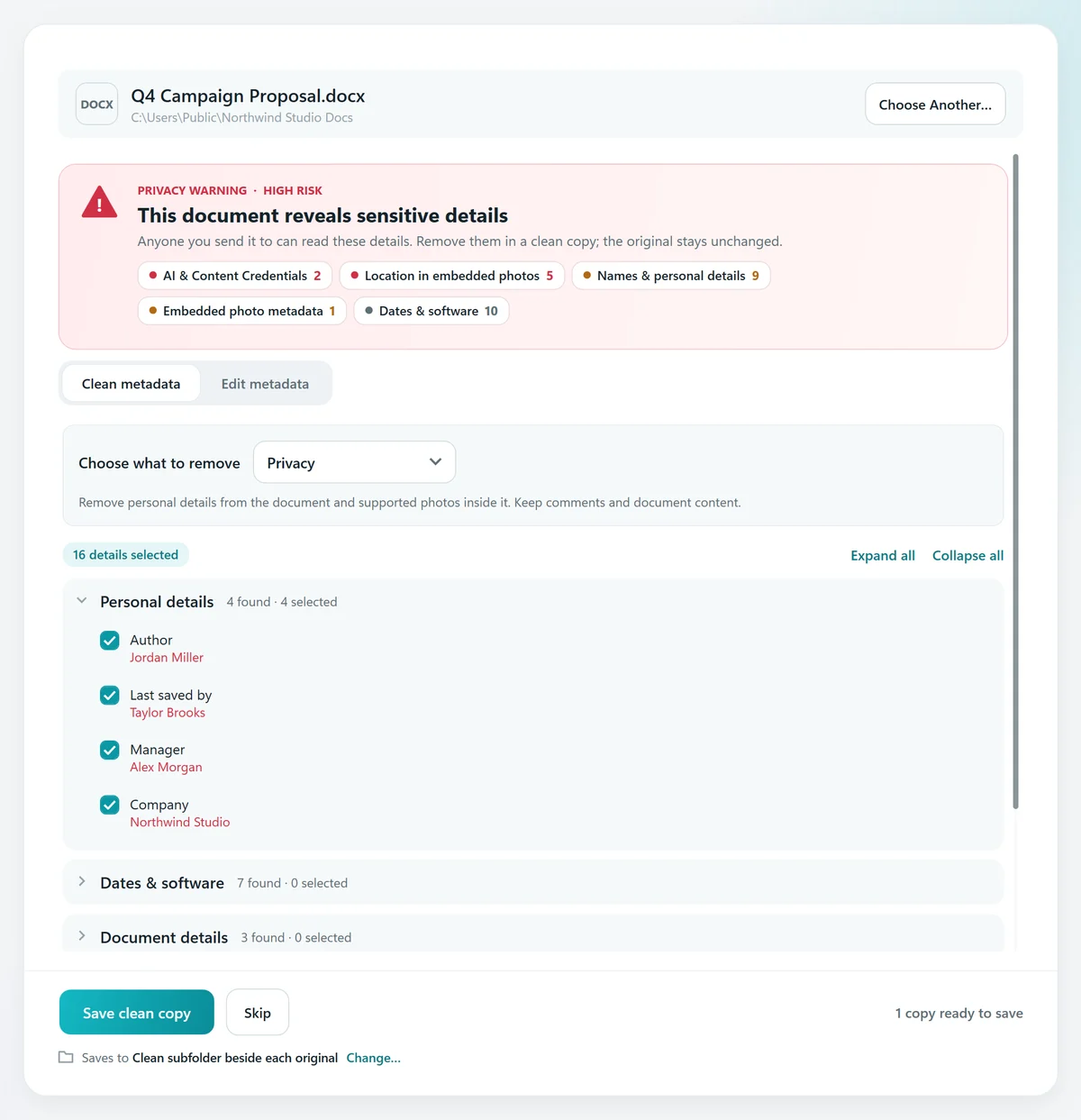
Choose Documents › Single document and pick a DOCX, XLSX, PPTX, PDF or OpenDocument file. It’s read on your computer; nothing is uploaded.
- 2
See what it reveals
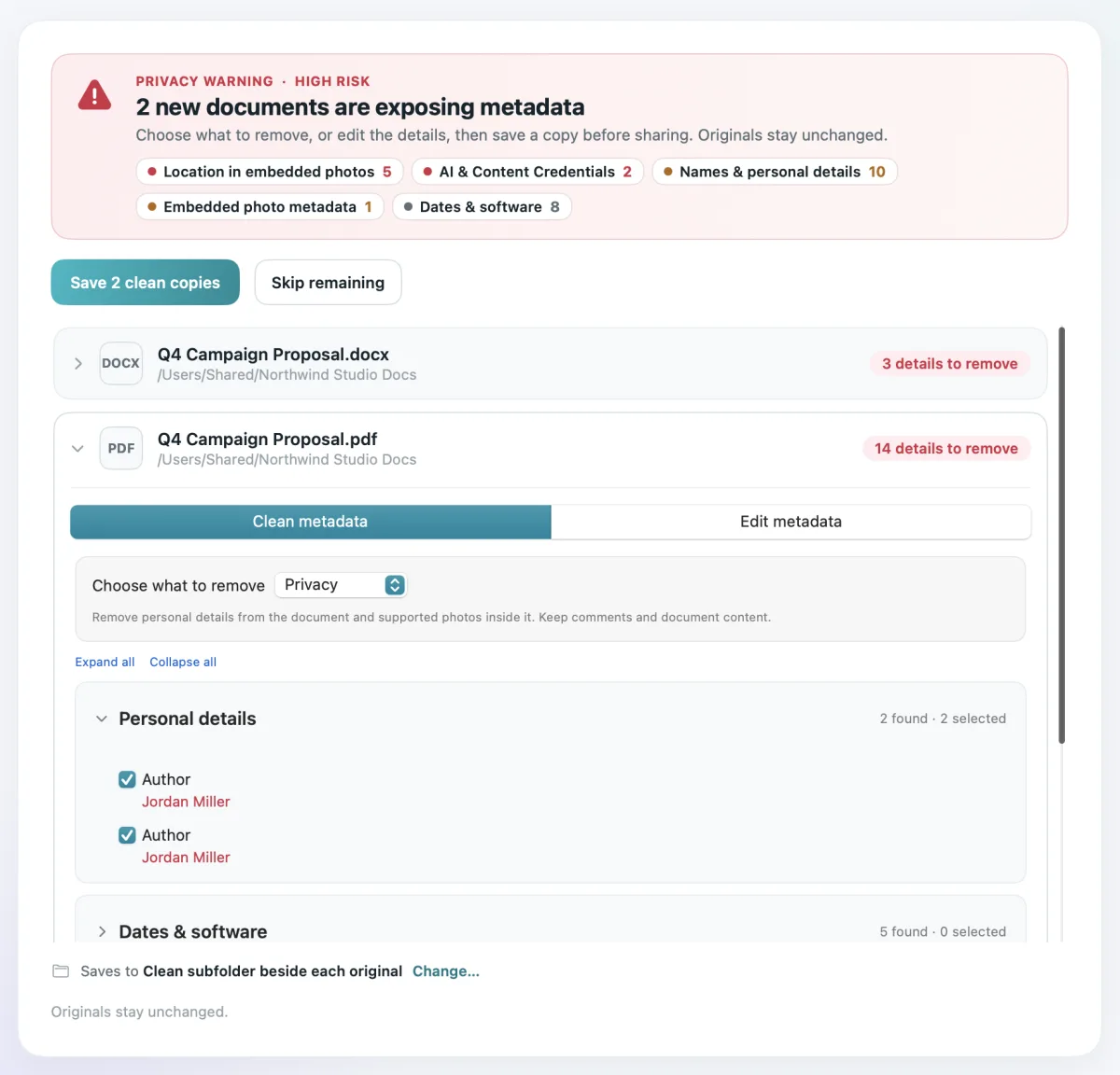
A privacy warning lists the author, last saved by, company, dates and every other field, plus the location and camera details in the photos inside.
- 3
Choose what to remove
The Privacy preset selects names, company and photo location and camera details. In Word and Excel files, tick comments under Content changes to remove them too.
- 4
Save the clean copy
MetaClean checks that every selected field is gone and the content is unchanged, then saves the copy in a “Clean” folder beside the original.


Document Inspector, Office for Mac and MetaClean, compared
Use them together on Windows: the Document Inspector for tracked changes, hidden text, speaker notes and hidden sheets, then MetaClean for the photo metadata and a verified copy.
Inspect Document greyed out or not working
The document is protected
Word says “This document is protected” and won’t inspect it. Remove the protection first (Review › Restrict Editing › Stop Protection), then run the inspector.
It’s a shared workbook
Excel can’t check comments, document properties or headers and footers in a shared workbook. Turn off sharing on a copy first.
You’re on a Mac
The command doesn’t exist in Office for Mac. Use the
Your name keeps disappearing
After an inspection, PowerPoint may keep removing personal information on every save. Click Change setting in the notice bar to stop it.
Guides for each file type
For the details of each app, comments and speaker notes included, see the guides for Word, Excel, PowerPoint and PDF files. For photos on their own, use the photo metadata remover.
Your documents stay on your computer
Contracts, CVs and client files shouldn’t pass through someone else’s server to remove a name. MetaClean works on your own Mac or Windows PC: no uploads, no account, no file size limits. More about privacy →
People are asking
What the inspector misses
Document Inspector: your questions
Where is the Document Inspector in Word?
In Word for Windows: File › Info › Check for Issues › Inspect Document. Tick the kinds of content to check, click Inspect, then click Remove All next to each result you want gone, and save. The same path works in Excel and PowerPoint for Windows.
Is there a Document Inspector in Word for Mac?
No. Word for Mac has no Inspect Document command. The closest option is Tools › Protect Document › “Remove personal information from this file on save”, which clears your name from the properties and comments when you save. Excel for Mac has the same option under Excel › Settings › Security. PowerPoint for Mac has neither.
What does the Document Inspector remove?
Comments, revisions and annotations, document properties and personal information (author, company, manager, last saved by), headers, footers and watermarks, hidden text in Word, hidden rows, columns and sheets in Excel, speaker notes and
Does the Document Inspector remove photo metadata?
No. It cleans the document’s own properties and hidden content. The photos you inserted keep their own EXIF data, including GPS location, camera model and serial number. MetaClean removes those from the photos inside Word, Excel, PowerPoint and PDF files, without recompressing them.
Can I undo the Document Inspector?
Not reliably. Microsoft warns that Undo may not bring back what the inspector removed, so run it on a copy of the file (File › Save As) and keep the original. MetaClean always writes a separate clean copy and leaves the original as it was.
Why is Inspect Document greyed out or not working?
The document is usually protected: remove the protection first (Review › Restrict Editing in Word), then run the inspector. In Excel, a shared workbook blocks the comments, document properties and header and footer checks; turn off sharing on a copy first. It isn’t available at all in Office for Mac.
Does the Document Inspector work on PDFs?
No. It only works on files open in Word, Excel and PowerPoint. A PDF exported from Word can still carry the author, company and dates. MetaClean cleans PDFs the same way as Office files.
Can I inspect many documents at once?
Not with the Document Inspector: it works on one open file at a time. Drop a whole folder into MetaClean’s Documents › Batch folder to clean every DOCX, XLSX, PPTX, PDF and OpenDocument file inside, subfolders included, with a verified copy of each.
Is the Document Inspector enough before sending a file?
For the document’s own properties, comments and hidden content on Windows, it does a good job. It leaves the GPS and camera details of inserted photos, overwrites your only copy, and doesn’t confirm the result. Check the file in MetaClean afterwards, or use MetaClean on its own on a Mac.

Inspect it. Clean it.
Keep the original.
See and remove what your Word, Excel, PowerPoint and PDF files reveal, on your own Mac or PC, with a verified clean copy every time. Free for 3 days, then $5 once.
Download free trial